Monitor for Photo Editing 2026: The Ultimate Guide

The perfect monitor for photo editing in 2026: resolution, color accuracy, panel types, calibration and the best models for photographers — with concrete recommendations from value pick to pro reference.

Monitor for Photo Editing 2026 — The ultimate buying guide for photographers
Martin Kleinheinz
Author
Martin Kleinheinz
Photographer · Hannover
Updated
May 25, 2026

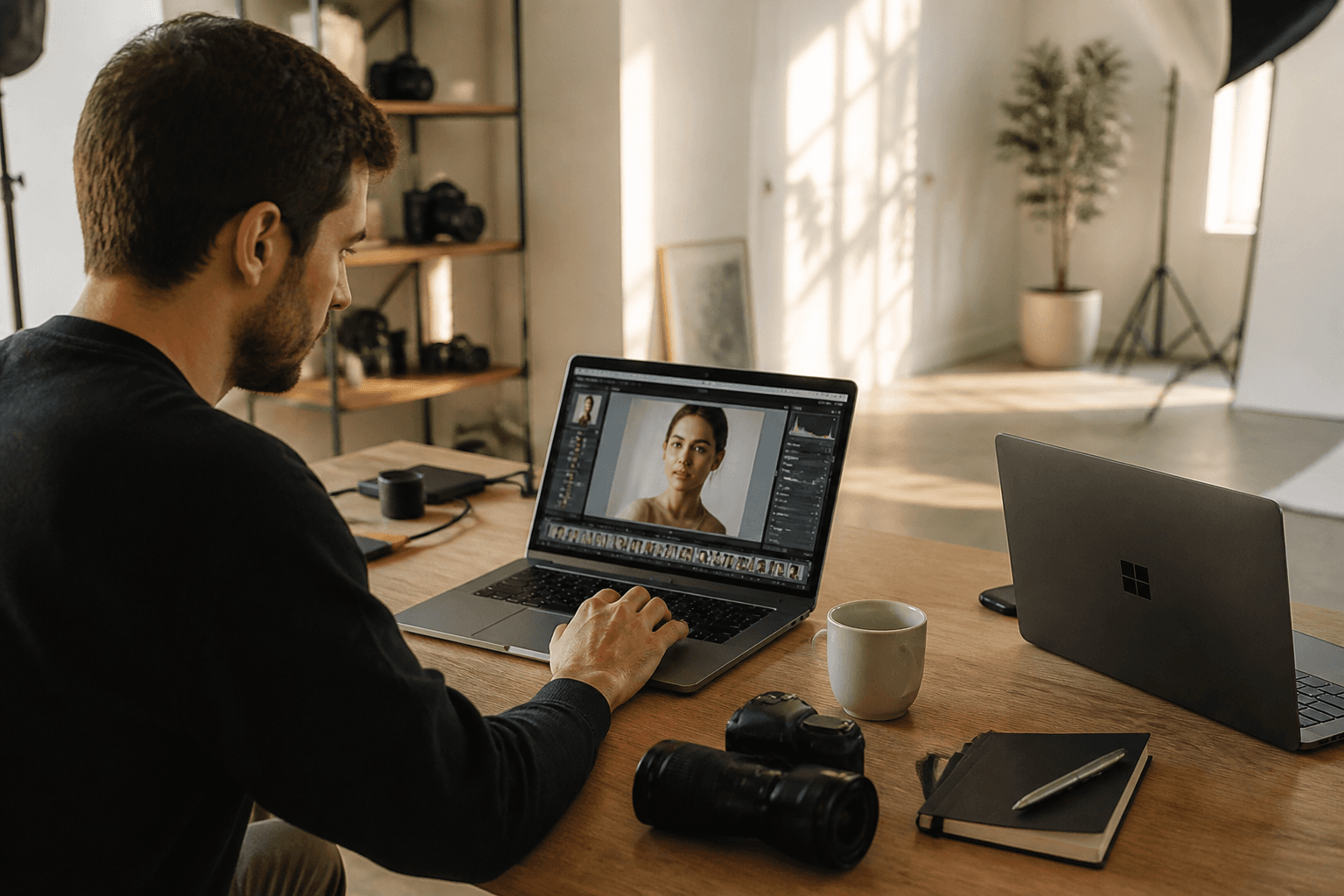
You know the feeling: you've captured the perfect shot, the light was magical, the composition spot on. But after hours of editing in Lightroom or Photoshop, the disappointment hits. The final print looks dull — colors washed out, contrast wrong, the fine details you carefully worked on are gone. Or worse: the image that looked brilliant on your screen looks completely different on your friend's phone or laptop. This frustrating experience is a clear sign that the most important tool in your digital darkroom isn't doing its job: your monitor.

Many ambitious photographers spend thousands of euros on cameras and lenses but neglect the one device that influences every single decision in post-processing. The monitor is the calibrated eye of the photographer. Every click, every adjustment to exposure, color and contrast is based on the visual information it delivers. If that representation is flawed, you build your entire piece of art on a wrong foundation. A color-accurate, precise monitor is therefore not a luxury — it's an essential tool that decides whether your photographic work succeeds or fails.

This article is your comprehensive guide through the jungle of technical specs and marketing terms. We'll demystify the decisive criteria for a good editing monitor — from resolution and color-space coverage through panel types and calibration. Anyone who wants to refresh the basics of photo editing in parallel, or know which image format fits which workflow, will find the right depth here.

The goal is to give you the knowledge to make an informed buying decision and find the perfect monitor for your needs and budget. That way photo editing turns from a guessing game into a precise, creative process where the final result finally matches your vision.

00
Quick Recommendation

No Time to Read? My Clear Value Pick

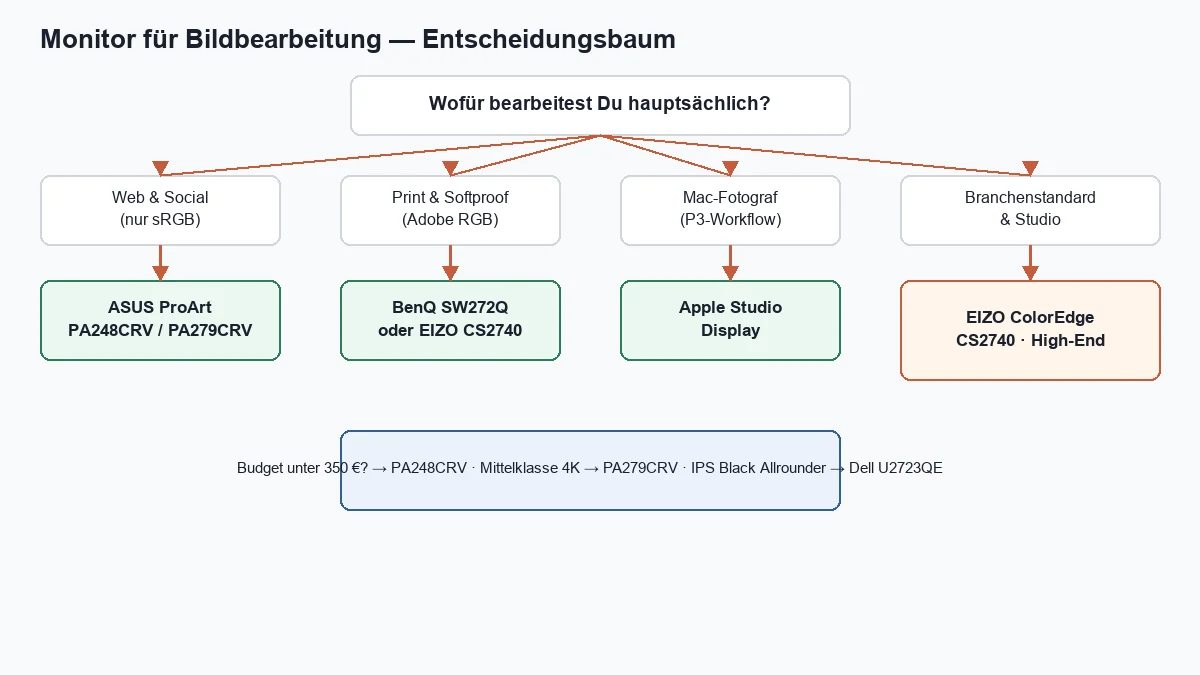
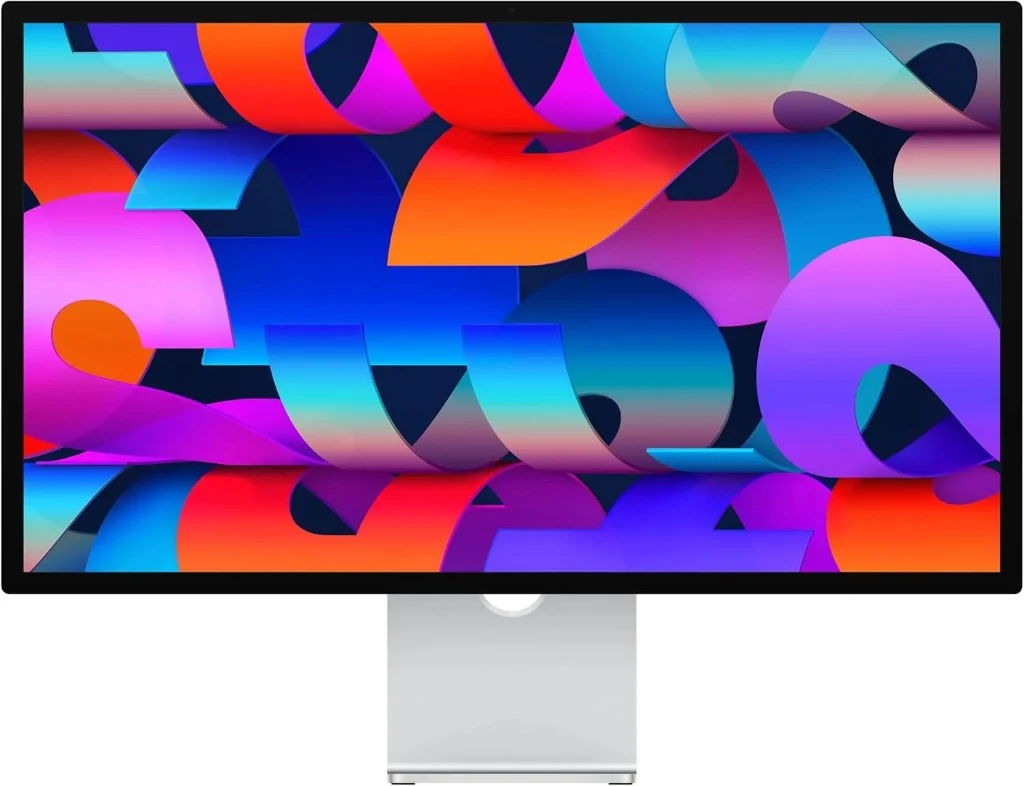
If you want to decide quickly without reading the full guide: for the vast majority of ambitious photographers, in 2026 there's no way around the ASUS ProArt PA279CRV — 27 inch, 4K, 99 % Adobe RGB, USB-C with 96 W Power Delivery and Delta E < 2 from the factory. If you already run a Mac mini or MacBook Pro and want Apple-style 5K sharpness without all-in-one compromises, the Apple Studio Display (2026 generation with Thunderbolt 5) is the logical second choice. All six curated models, the comparison table and the technical background follow below.

Two Quick Picks 2026

Best-Value King & 5K Apple Reference

The **ASUS ProArt** covers 80 % of all photo workflows. The **Apple Studio Display** is the dedicated 5K solution for Mac setups — one cable, reference modes, Thunderbolt 5.

Vergleich
ASUS
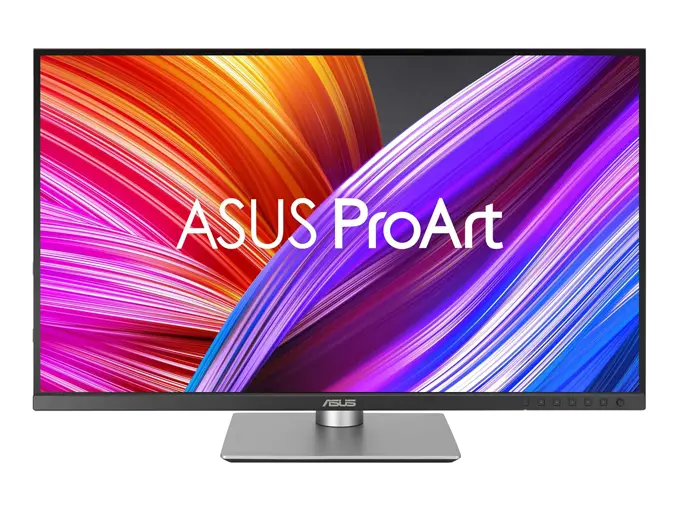
ASUS ProArt PA279CRV
Apple
Apple Studio Display
Bild
ASUS ProArt PA279CRV
Apple Studio Display
EmpfehlungBest ValueApple Pick
Sensor27" IPS · 4K UHD (3840 × 2160) · 163 PPI27" 5K Retina (5120 × 2880) · 218 PPI · 60 Hz
ISO-Bereich99 % Adobe RGB · 99 % DCI-P3 · Delta E < 2P3 Wide Color · True Tone · 1 billion colors
AutofokusUSB-C 96 W PD · DisplayPort-Out · USB hub2× Thunderbolt 5 · 2× USB-C · 96 W PD
DetailSoftware calibration · Calman-verified from factory9 reference modes · nano-texture option · Center Stage camera
Stärken
  • +Pro color accuracy at hobby price
  • +USB-C with 96 W Power Delivery — one cable for MacBook & Co.
  • +Daisy-chaining for a tidy multi-monitor setup
  • +99 % Adobe RGB for print workflows
  • +5K sharpness — text and photo details on Retina level
  • +Thunderbolt 5: one cable for image, data and power
  • +Reference modes for photo (P3-D65), print (P3-D50) and web (sRGB)
  • +Seamless with macOS, iPhone and iPad
Schwächen
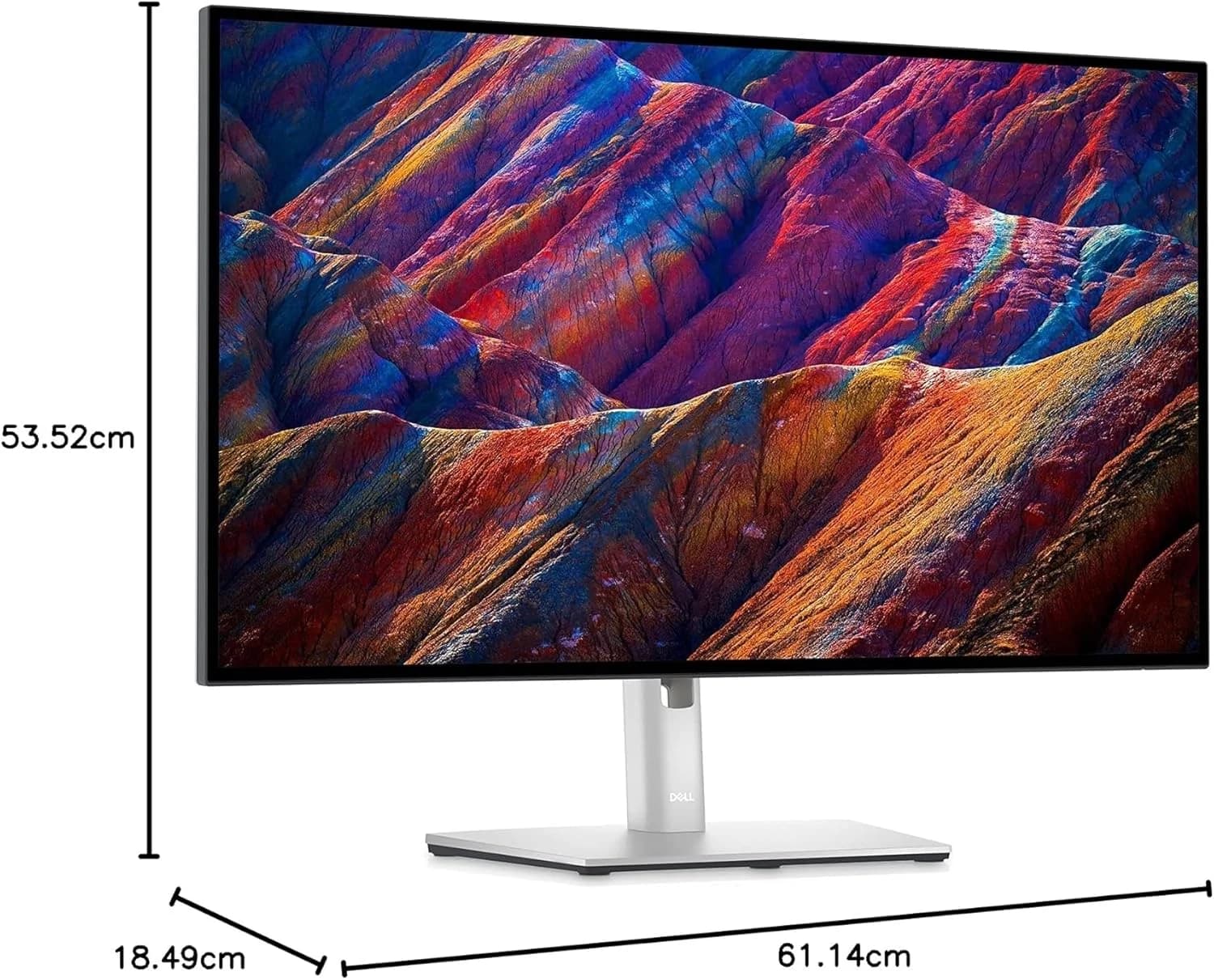
  • Software calibration instead of hardware LUT
  • Stand is solid but not Eizo-level
  • No Adobe RGB figure in the specs — print pros calibrate manually
  • 60 Hz — no high-refresh for gaming
  • Height-adjustable stand costs extra (standard: tilt only)
Geeignet fürAmbitious hobby photographers and content creators with print ambitions.Mac photographers with a Mac mini or MacBook who want a dedicated 5K display.
Wo kaufen
01
Basics

Why the Right Monitor Changes Everything

To grasp the central role of the monitor, you have to look at the path of an image as a chain — the color accuracy chain. It starts at the camera sensor, runs through the editing software, is visualised on the monitor and ends at the final output medium, whether a high-quality print or display on another digital device. The monitor is the decisive visual link in this chain. If that link is weak or unreliable, the whole chain breaks down and the result becomes unpredictable.

The consequences of a wrong representation are diverse and especially painful for photographers. An uncalibrated or unsuitable monitor inevitably leads to flawed editing decisions with serious side effects:

Wrong exposure and contrast judgments
One of the most common mistakes is an incorrectly set monitor brightness. A screen set too bright makes images look fine on the display that are in fact underexposed. The result is dark, lifeless prints with crushed shadows. Conversely, a too-dark monitor leads you to push exposure too far, producing images with blown-out highlights that have lost all detail. The same applies to contrast: an incorrectly set monitor contrast leads to edits that look either too flat or exaggerated and unnatural.
Inaccurate color matching
Every uncalibrated monitor has some color cast. Factory screens are often too cool — a slight blue cast. Your eyes adjust quickly, but the effect on editing is disastrous. To compensate for that perceived blue, you add warmer tones (yellow, red). On any correctly calibrated device — another monitor or the printer — the image then appears with an unnatural warm cast. The creative intent is turned upside down.
Problems with print output
The mismatch between screen display and final print is the biggest source of frustration, wasted time and unnecessary cost for expensive misprints. A color-accurate monitor that covers a large color space enables so-called "soft proofing". The software can simulate how an image will look on a specific printer with a specific paper. That preview is only as good as the monitor showing it. If the monitor display is off, the soft proof is worthless too.

A reliable monitor is therefore more than a display device; it's a guarantor of efficiency and trust. It spares you the grinding cycle of edit, export, check on the phone and correct again. It gives you confidence that your creative vision is translated accurately and not distorted by the flaws of your equipment. This certainty that what you see is what you get is the foundation of professional, satisfying work.

02
Top 4

The Best Photo-Editing Monitors 2026

Choosing the right monitor can feel overwhelming. To make the decision easier, I've put together a curated selection of four models, each representing its own philosophy for ambitious photographers: a value all-rounder (ASUS ProArt), the dedicated 5K solution for the Apple ecosystem (Apple Studio Display), the hardware-calibrated print specialist (BenQ SW272Q) and the uncompromising high-end reference (Eizo ColorEdge CS2740). Three workflows plus a premium escalation — you don't need more in 2026.

The Top 4 at a glance

Four monitors, four clear workflows

The **ASUS ProArt** delivers pro specs at a hobby price, the **Apple Studio Display** is the 5K reference for Mac setups, the **BenQ SW272Q** brings hardware calibration and a paper-like look to the desk, and the **Eizo ColorEdge CS2740** remains the uncompromising print-pro choice.

Vergleich
ASUS
ASUS ProArt PA279CRV
Apple
Apple Studio Display
BenQ
BenQ SW272Q
Eizo
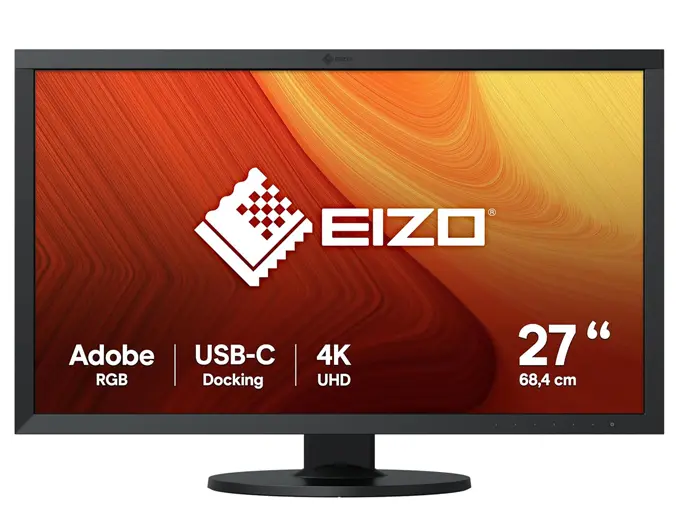
Eizo ColorEdge CS2740
Bild
ASUS ProArt PA279CRV
Apple Studio Display
BenQ SW272Q
Eizo ColorEdge CS2740
EmpfehlungBest ValueApple PickPrint PickPremium Pick
Sensor27" IPS · 4K UHD (3840 × 2160) · 163 PPI27" 5K Retina (5120 × 2880) · 218 PPI · 60 Hz27" IPS · QHD (2560 × 1440) · matte · anti-reflective27" IPS · 4K UHD (3840 × 2160)
ISO-Bereich99 % Adobe RGB · 99 % DCI-P3 · Delta E < 2P3 Wide Color · True Tone · 1 billion colors99 % Adobe RGB · 98 % DCI-P3 · ΔE ≤ 1.599 % Adobe RGB · 16-bit internal LUT
AutofokusUSB-C 96 W PD · DisplayPort-Out · USB hub2× Thunderbolt 5 · 2× USB-C · 96 W PDHardware calibration · Paper Color Sync · UniformityHardware calibration · ColorNavigator 7
DetailSoftware calibration · Calman-verified from factory9 reference modes · nano-texture option · Center Stage cameraUSB-C 90 W PD · DisplayPort · HDMI · SD card readerDigital Uniformity Equaliser · 5-year warranty
Stärken
  • +Pro color accuracy at hobby price
  • +USB-C with 96 W Power Delivery — one cable for MacBook & Co.
  • +Daisy-chaining for a tidy multi-monitor setup
  • +99 % Adobe RGB for print workflows
  • +5K sharpness — text and photo details on Retina level
  • +Thunderbolt 5: one cable for image, data and power
  • +Reference modes for photo (P3-D65), print (P3-D50) and web (sRGB)
  • +Seamless with macOS, iPhone and iPad
  • +Hardware calibration — lossless LUT like Eizo
  • +Paper Color Sync: print preview close to the actual paper
  • +Finely coated panel — less glare at the desk
  • +Hotkey Puck G3 for fast color-space switching
  • +Lossless hardware calibration (16-bit LUT)
  • +Digital Uniformity Equaliser for uniform image
  • +99 % Adobe RGB — perfect for print
  • +5-year warranty incl. on-site swap
Schwächen
  • Software calibration instead of hardware LUT
  • Stand is solid but not Eizo-level
  • No Adobe RGB figure in the specs — print pros calibrate manually
  • 60 Hz — no high-refresh for gaming
  • Height-adjustable stand costs extra (standard: tilt only)
  • QHD instead of 4K/5K — text scaling looks blurry on macOS
  • Only 60 Hz — no gaming monitor
  • Brightness 350 cd/m² — HDR is preview rather than mastering
  • Higher price than pure software-calibration monitors
  • Calibration sensor (e.g. Calibrite) sold separately
Geeignet fürAmbitious hobby photographers and content creators with print ambitions.Mac photographers with a Mac mini or MacBook who want a dedicated 5K display.Print-oriented photographers who want hardware calibration below Eizo prices.Print photographers, studios and anyone who wants to eliminate every source of error.
Wo kaufen

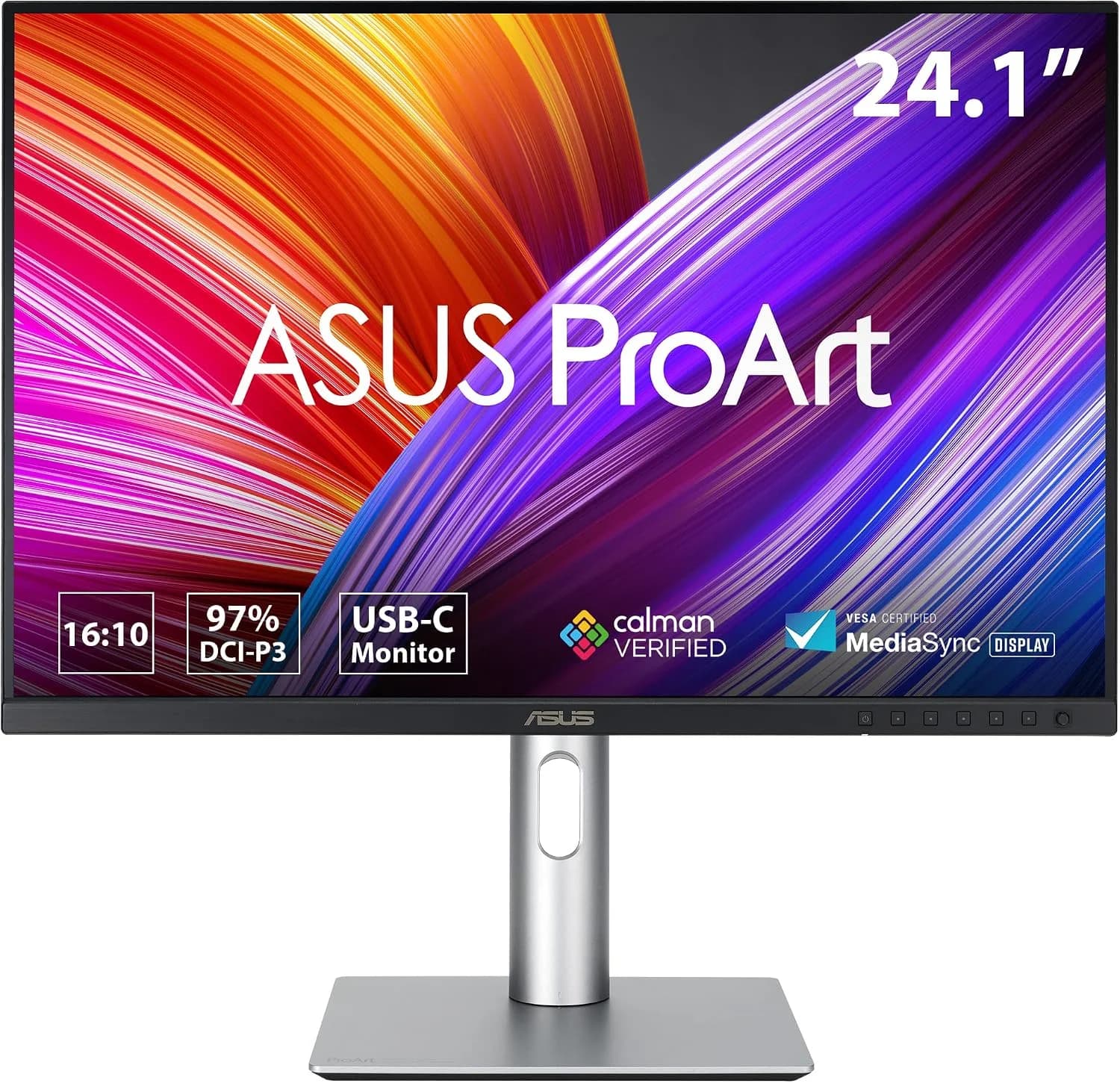
ASUS ProArt PA279CRV: Best Value for Money

The ASUS ProArt PA279CRV is the smart choice for photographers who want professional features without a pro photographer's budget. It hits the sweet spot of high performance and an attractive price, making it my top recommendation for best value for money.

Positioning and technical highlights: This monitor targets the ambitious enthusiast who wants to take a significant quality leap in their editing. At its heart sits a 27-inch IPS panel with a razor-sharp 4K UHD resolution of 3840 × 2160 pixels. That yields an excellent pixel density of 163 PPI (pixels per inch), making the finest details in your photos visible and text and menus extremely crisp.

The real strength of the PA279CRV lies in its color performance, however. With an impressive color space coverage of 99 % Adobe RGB and 99 % DCI-P3, it's well prepared for both demanding print workflows and video editing. ASUS ships the monitor Calman-verified from the factory and guarantees Delta E < 2 color accuracy. That means high color fidelity right out of the box — anything but a given in this price class.

Another standout feature is modern, comprehensive connectivity. The USB-C port not only delivers the image signal but also up to 96 W of power (Power Delivery). For laptop users that's decisive: one cable is enough to charge the laptop, send the image and access the integrated USB hub. A DisplayPort-Out also enables "daisy chaining", where a second monitor is connected directly to the first — further reducing cable clutter on your desk.

Ideal for: ambitious hobby photographers and content creators looking for the biggest quality leap for the money. It offers a future-proof feature set far beyond what's usual in this price segment, making it a perfect central hub for a modern, tidy workspace.

Best Value
ASUS ProArt PA279CRV
Bewertung
4.6
/ 5,0
★★★★
Basierend auf 0 verifizierten Bewertungen
ASUS

ASUS ProArt PA279CRV

Best value for money 2026

27-inch IPS panel with 4K UHD resolution, 99 % Adobe RGB and 99 % DCI-P3, Calman-verified with Delta E < 2 from the factory. USB-C with 96 W Power Delivery, daisy-chaining via DisplayPort-Out — the perfect tool for ambitious hobby photographers who want pro features without paying pro prices.

Was überzeugt
  • +Pro color accuracy at hobby price
  • +USB-C with 96 W Power Delivery — one cable for MacBook & Co.
  • +Daisy-chaining for a tidy multi-monitor setup
  • +99 % Adobe RGB for print workflows
Was Du wissen solltest
  • Software calibration instead of hardware LUT
  • Stand is solid but not Eizo-level
Editor's Statement

My value pick for most photographers

Verfügbar bei

Apple Studio Display: The 5K Reference for Mac Photographers

If you already use a Mac mini, Mac Studio or MacBook Pro and don't need a second computer inside the monitor, you almost inevitably land at the Apple Studio Display in 2026. The 2026 generation is more than a facelift: two Thunderbolt 5 ports (up to 120 Gbit/s), 96 W Power Delivery to the host and nine reference modes — including explicit Photography (P3-D65) and Design and Print (P3-D50) — make it a serious photo tool, not just nice-looking peripheral.

Technical highlights: 27 inches, 5K Retina (5120 × 2880, 218 PPI), 600 nits, wide P3 color space, True Tone and support for one billion colors. The refresh rate stays at 60 Hz — completely sufficient for pure photo editing. Optional nano-texture glass is available for reflection-free work in bright studios. The integrated 12MP Center Stage camera with Desk View, studio mics and the 6-speaker system with 3D audio are nice-to-haves for video calls — for photography, the display and TB5 daisy-chaining matter.

Ideal for: Mac photographers who want 5K sharpness, reference modes and a single-cable setup. If you primarily work for print, you should also calibrate and keep the P3-centric color world in mind; for web, social and cross-device Apple workflows, the 2026 Studio Display is the strongest dedicated monitor choice in the ecosystem.

Apple Pick
Apple Studio Display
Bewertung
5.0
/ 5,0
★★★★★
Basierend auf 6 verifizierten Bewertungen
Apple

Apple Studio Display

The 5K reference for Mac photographers

27-inch 5K Retina display (5120 × 2880, 218 PPI) with wide P3 color space, True Tone and 600 nits — the 2026 generation with two Thunderbolt 5 ports (up to 120 Gbit/s), 96 W Power Delivery and nine reference modes including P3-D65 for photography. 12MP Center Stage camera, studio mics and 6-speaker system — perfect match for Mac mini, MacBook Pro and iPad Pro.

Was überzeugt
  • +5K sharpness — text and photo details on Retina level
  • +Thunderbolt 5: one cable for image, data and power
  • +Reference modes for photo (P3-D65), print (P3-D50) and web (sRGB)
  • +Seamless with macOS, iPhone and iPad
Was Du wissen solltest
  • No Adobe RGB figure in the specs — print pros calibrate manually
  • 60 Hz — no high-refresh for gaming
  • Height-adjustable stand costs extra (standard: tilt only)
Editor's Statement

Apple's dedicated photo monitor from ~€1,850

Verfügbar bei

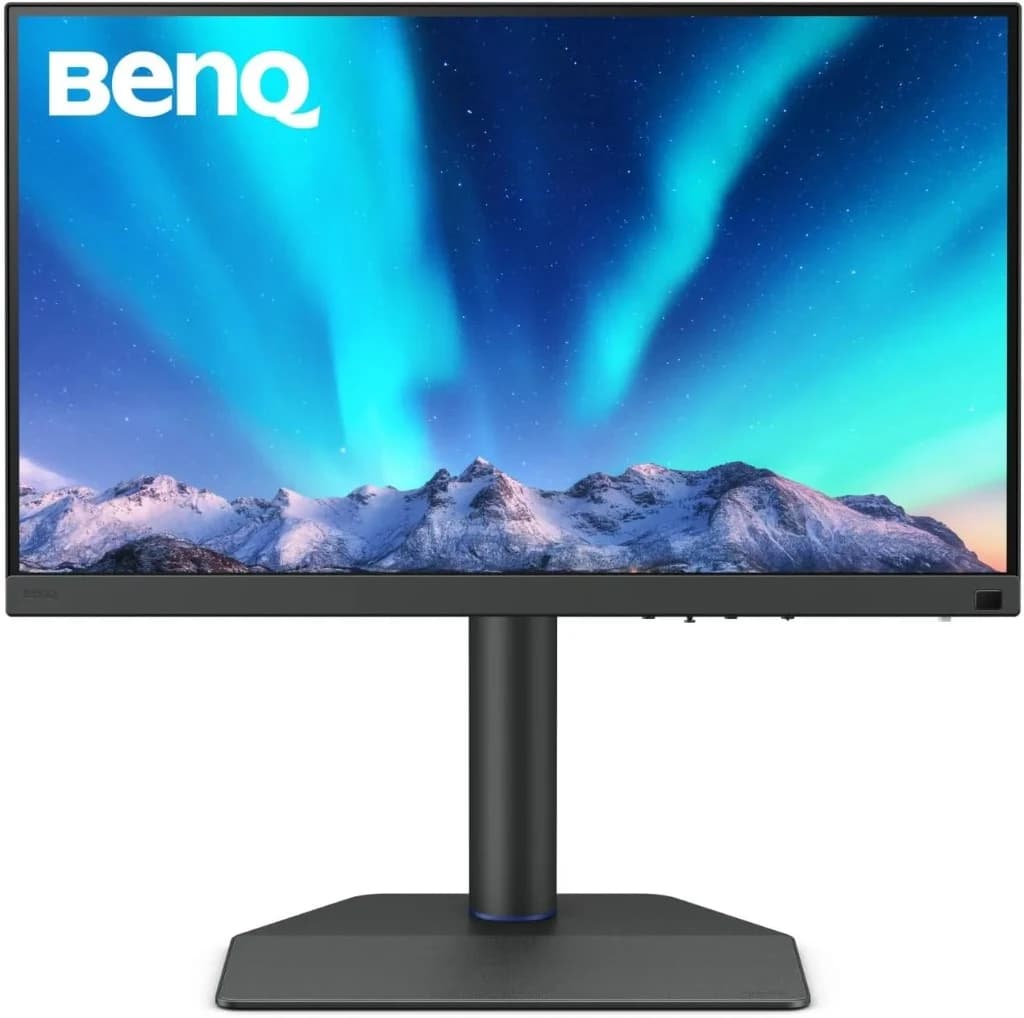
BenQ SW272Q: Hardware Calibration & Screen-to-Print

The BenQ SW272Q closes the gap between the software-calibrated ASUS ProArt and the Eizo price level. It's a true PhotoVue photo monitor with hardware calibration via Palette Master Ultimate (around 40 % faster than earlier generations according to BenQ), Paper Color Sync for a print preview very close to the paper result, and a finely coated anti-reflective panel — the image looks less "digitally glossy", more like paper on a light table.

Technical highlights: 27 inches, QHD (2560 × 1440) — important: this is not a 4K monitor. On a Mac that often means blurry UI scaling for text and menus, while photos themselves look razor sharp (109 PPI). Color-wise it delivers 99 % Adobe RGB, 98 % DCI-P3 / Display P3, ΔE ≤ 1.5, 10-bit color depth and a 16-bit 3D LUT. 90 W USB-C, Hotkey Puck G3, HDR10/HLG and Pantone/Calman verification round off the package.

Ideal for: print-oriented photographers and studios who need hardware calibration and screen-to-print consistency without paying Eizo prices. No Mini-LED and no OLED — instead a classic, matte IPS tool with a focus on color fidelity to the printer.

Print Pick
BenQ SW272Q
Bewertung
4.6
/ 5,0
★★★★
Basierend auf 40 verifizierten Bewertungen
BenQ

BenQ SW272Q

Hardware-calibrated photo monitor with a paper look

27-inch PhotoVue monitor with finely coated anti-reflective panel (paper-like look), 99 % Adobe RGB, 98 % DCI-P3 / Display P3, ΔE ≤ 1.5 and 10-bit color depth through a 16-bit 3D LUT. Hardware calibration via Palette Master Ultimate, Paper Color Sync for screen-to-print preview, 90 W USB-C and wireless Hotkey Puck G3. Calman and Pantone verified.

Was überzeugt
  • +Hardware calibration — lossless LUT like Eizo
  • +Paper Color Sync: print preview close to the actual paper
  • +Finely coated panel — less glare at the desk
  • +Hotkey Puck G3 for fast color-space switching
Was Du wissen solltest
  • QHD instead of 4K/5K — text scaling looks blurry on macOS
  • Only 60 Hz — no gaming monitor
  • Brightness 350 cd/m² — HDR is preview rather than mastering
Editor's Statement

My pick for print workflows with hardware calibration

Verfügbar bei

Eizo ColorEdge CS2740: The Uncompromising High-End Reference

When uncompromising color accuracy and reliability are at stake, the name Eizo has been the reference in professional editing for decades. The ColorEdge CS2740 is the "no compromises" model for photographers who demand absolute precision and treat editing not as a hobby but as a serious passion. Compared with the previous three picks it's the high-end escalation — in price, technology and ambition.

Positioning and technical highlights: the CS2740 is a tool, not a toy. Its decisive advantage is lossless hardware calibration. With the powerful Eizo ColorNavigator 7 software, a profile isn't just generated for the graphics card — the monitor's internal 16-bit lookup table (LUT) is adjusted directly. The image signal from the computer remains untouched, preserving the full color depth and rendering the finest gradients without visible banding. This process guarantees the highest possible precision and is independent of the connected computer.

Another unique feature is the Digital Uniformity Equaliser (DUE). Every single Eizo monitor is measured at the factory to detect brightness and color deviations across the entire screen surface and correct them digitally. The result is outstanding homogeneity: a grey tone in the centre of the screen looks exactly the same as in the corners — a decisive advantage over consumer monitors where visible brightness and color differences are common.

With its 4K UHD resolution on 27 inches and excellent 99 % Adobe RGB coverage, the CS2740 is perfectly suited to a professional print workflow. Eizo underlines its professional claim with a 5-year manufacturer warranty including an on-site swap service — exceptional investment security.

Ideal for: the Eizo ColorEdge CS2740 is the first choice for photographers who work regularly for print, demand the highest color fidelity and are willing to invest in a tool that delivers absolutely uncompromising, consistent results over many years. It's for those who want to eliminate every possible source of error in their workflow.

Premium Pick
Eizo ColorEdge CS2740
Bewertung
4.9
/ 5,0
★★★★
Basierend auf 0 verifizierten Bewertungen
Eizo

Eizo ColorEdge CS2740

The pro reference for uncompromising color accuracy

27-inch 4K monitor with lossless hardware calibration via the internal 16-bit LUT and Eizo ColorNavigator 7. 99 % Adobe RGB, Digital Uniformity Equaliser (DUE) for absolute uniformity across the entire screen surface and a 5-year manufacturer warranty with on-site swap service — the tool for serious print workflows.

Was überzeugt
  • +Lossless hardware calibration (16-bit LUT)
  • +Digital Uniformity Equaliser for uniform image
  • +99 % Adobe RGB — perfect for print
  • +5-year warranty incl. on-site swap
Was Du wissen solltest
  • Higher price than pure software-calibration monitors
  • Calibration sensor (e.g. Calibrite) sold separately
Editor's Statement

First choice for print pros and studios

Verfügbar bei

The four monitors compared directly

FeatureASUS ProArt PA279CRVApple Studio DisplayBenQ SW272QEizo ColorEdge CS2740
Ideal forValue all-rounderMac users wanting 5KPrint with hardware calibrationHigh-end pro reference
Resolution4K UHD (3840 × 2160)5K Retina (5120 × 2880)QHD (2560 × 1440)4K UHD (3840 × 2160)
Diagonal27 inch27 inch27 inch27 inch
Color space (Adobe RGB)99 %P3 (incl. P3-D65 photo reference mode)99 %99 %
CalibrationSoftwareSoftware / reference modesHardware calibrationHardware (lossless, 16-bit LUT)
Stand-outUSB-C 96 W, daisy-chainThunderbolt 5, 9 reference modesPaper Color Sync, Hotkey PuckDUE, 5-year warranty
ConnectivityUSB-C 96 W PDTB5 + USB-C, 96 W PDUSB-C 90 W PDDisplayPort, USB-C

Four 2026 photo-editing monitors compared — prices intentionally left at the shop, since they fluctuate daily.

03
Resolution

Resolution & Screen Size — Finding the Right Combination

Choosing the right combination of screen size and resolution is crucial for working comfort and detail accuracy in editing. These two factors determine how much of your image you see at once and how sharp it looks.

Full HD, WQHD, 4K and more: What's worthwhile?

Behind the abbreviations sit concrete pixel counts that define a monitor's wealth of detail:

Full HD (FHD)
1920 × 1080 pixels.
WQHD (or QHD/2K)
2560 × 1440 pixels. "WQHD" stands for "Wide Quad High Definition" and refers to four times the resolution of standard HD (720p).
4K UHD (Ultra HD)
3840 × 2160 pixels. This is the common "consumer 4K" resolution following the 16:9 format.

The sensible choice of resolution depends heavily on the screen diagonal:

Full HD
For monitors up to 24 inch this resolution can be sufficient, especially for beginners. On larger screens, however, the image quickly becomes blurry and pixelated. Another drawback is limited space: in programs like Lightroom or Photoshop, the tool palettes take up a large part of the screen, leaving little room for the actual image.
WQHD
Many regard this resolution as the "sweet spot" for 27-inch monitors. It offers an excellent compromise between a sharp image, plenty of working space and moderate demands on the computer's GPU. With this combination, UI scaling is usually unnecessary, so you can fully use the additional space.
4K UHD
Ideal for monitors of 27 inch and larger. This resolution offers maximum sharpness and incredible detail. You can zoom deep into images and judge sharpness perfectly. However, 4K places higher demands on GPU performance. Moreover, on a 27-inch monitor UI scaling (e.g. to 150 %) is often necessary in Windows or macOS so that menus and text remain readable, which negates some of the additional space.

Influence of the screen diagonal on image quality

Pure resolution tells only half the truth about sharpness. The decisive factor is pixel density, measured in PPI (pixels per inch). This value indicates how many pixels are packed into one inch (2.54 cm) of the screen. A higher PPI means smaller pixels closer together, giving a smoother, sharper, more detailed image where individual pixels are no longer visible.

A practical comparison for a 27-inch monitor:

Full HD (1920 × 1080)
approx. 82 PPI. The image can look slightly blurry or "pixelated" from a normal viewing distance.
WQHD (2560 × 1440)
approx. 109 PPI. A solid standard that delivers a pleasantly sharp image.
4K UHD (3840 × 2160)
approx. 163 PPI. This produces an extremely sharp rendering often described as "Retina-like", where even the finest details are clearly recognisable.

Choosing pixel density is therefore a balancing act. While too low PPI (< 90) visibly degrades image quality, very high PPI on too small a screen without scaling can cause ergonomic problems because the interface becomes unreadably small.

Resolution guide for photographers

DiagonalRecommended resolutionPixels per inch (PPI)Verdict
24 inchFull HD (1920 × 1080)approx. 92 PPIGood entry point, but limited space for tools.
24 inchWQHD (2560 × 1440)approx. 122 PPIVery sharp, possibly slight scaling required.
27 inchWQHD (2560 × 1440)approx. 109 PPIThe "sweet spot": ideal balance of sharpness and working area.
27 inch4K UHD (3840 × 2160)approx. 163 PPIMaximum sharpness and detail, requires UI scaling.
32 inch4K UHD (3840 × 2160)approx. 138 PPIExcellent combination, huge working area with high sharpness.

Recommended resolution/diagonal combinations for photographers.

04
Color

Understanding Color Accuracy & Color-Space Coverage

This is the heart of any photo-editing monitor. The ability to render colors not only brilliantly but above all correctly is the decisive quality criterion. Three concepts are central here: color space, color fidelity (Delta E) and color depth.

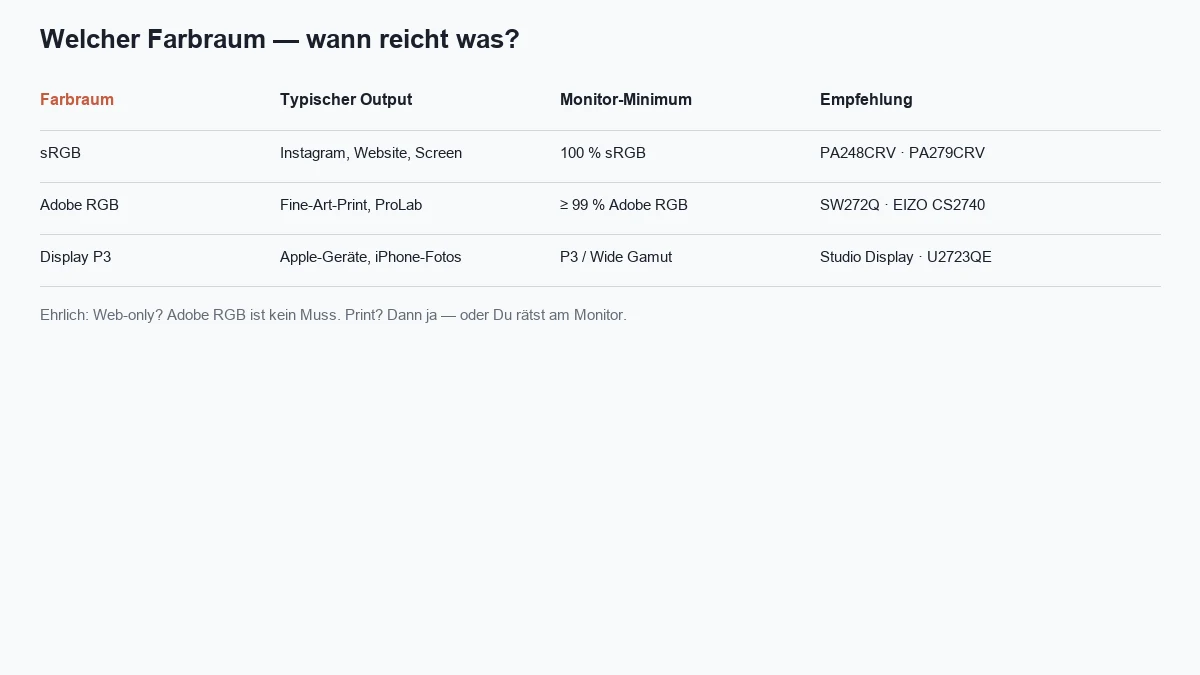
Meaning of sRGB, Adobe RGB and other color spaces

You can think of a color space like a paint box. It defines the entire set of colors a device can display or record. A bigger paint box contains more and more nuanced color shades. For more on the choice between sRGB and Adobe RGB, this comprehensive guide is worth reading. Which image format (RAW, JPEG, HEIF) best fits which color space is covered in the guide Which image format is best?.

sRGB (standard Red Green Blue)
The smallest common denominator, the universal standard for the internet and most consumer devices. All web browsers, smartphones and standard monitors are optimised to display sRGB colors. If you primarily share images online, 100 % sRGB coverage is an absolute baseline. Images saved in a larger color space such as Adobe RGB and shown on the web without correct conversion look washed out and desaturated.
Adobe RGB
Introduced in 1998 by Adobe, this color space is significantly larger than sRGB. It includes notably more green and cyan tones — exactly the colors found in nature photography (lush green leaves, turquoise water) or in certain fabrics, which sRGB cannot reproduce. For photographers who want to print their work to a high standard, a monitor that covers Adobe RGB at least 95 %, ideally 99 % or more, is essential. Only then can they actually see the colors their camera has captured and optimise them for print.
DCI-P3
Originally a standard for digital cinema projection, this color space has also gained importance in photography, primarily because Apple uses it for its displays (iMac, MacBook, iPhone). It's larger than sRGB but laid out somewhat differently than Adobe RGB. For photographers in the Apple ecosystem it offers excellent color reproduction for cross-device use.

Delta E value and color fidelity

Color-space coverage tells you which colors a monitor can display. Color fidelity describes how accurately it hits those colors. The measure for that is the Delta E value (also ΔE or dE). The letter "E" stands for the German word "Empfindung" (sensation), since the value quantifies the difference in color perception. A scientific explanation of color distance and Delta E can be found in this technical article.

A Delta E value is a number describing the deviation between the color that should be displayed (target value) and the color the monitor actually renders (actual value). The rule: the lower the value, the better the color fidelity.

ΔE < 1
The difference is practically imperceptible to the human eye.
ΔE between 1 and 2
The difference is only visible to a trained eye in a direct comparison. A value of ΔE < 2 is the gold standard for professional graphic monitors.
ΔE > 3
The color difference is visible even to laypeople at first glance.

Manufacturers of high-quality monitors such as Eizo, BenQ or ASUS often include an individual calibration report with their units, certifying the average Delta E value from the factory and thus guaranteeing high color accuracy from the outset.

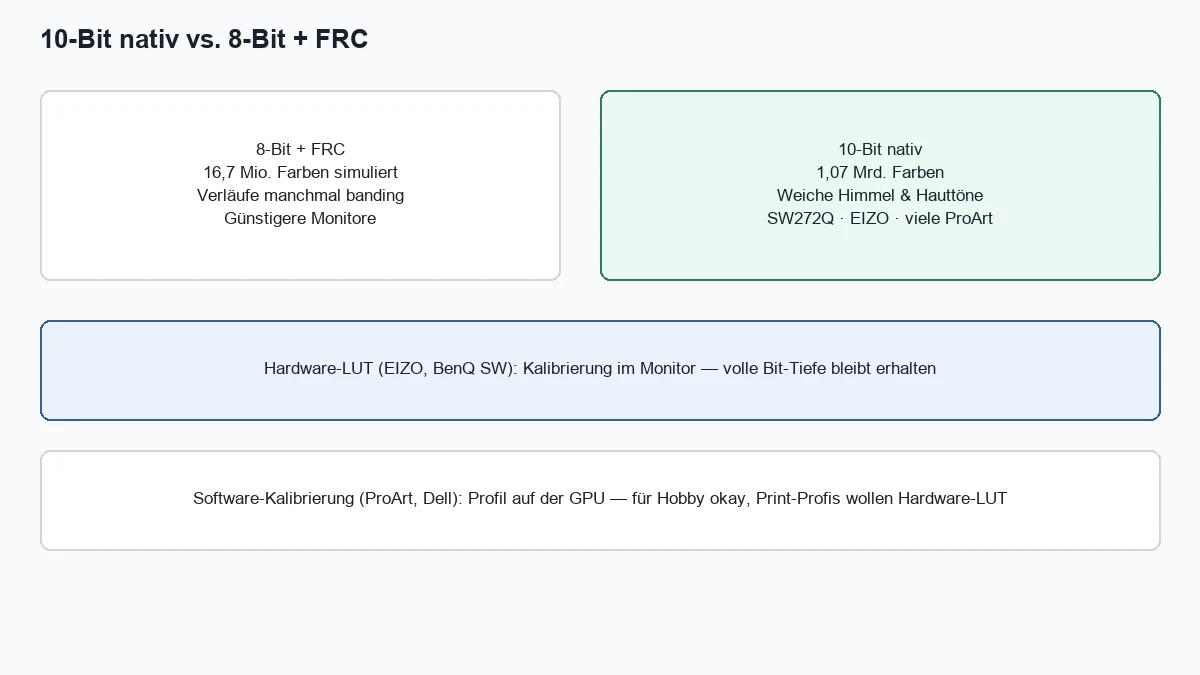
Color depth: 8-bit vs. 10-bit

Color depth describes how many gradations of a color can be displayed between black and white. Think of it like the number of steps in a gradient.

8-bit color depth
A monitor with 8 bits per color channel (red, green, blue) can display 256 (2⁸) gradations per channel. That totals 256 × 256 × 256 = 16.7 million possible colors. This is the long-standing standard.
10-bit color depth
A monitor with 10 bits per channel can display 1024 (2¹⁰) gradations, totalling over 1 billion colors — 64 times more than 8-bit.

The practical advantage of 10 bits is enormous: gradients such as a blue sky, sunsets or soft skin appear absolutely smooth and flowing. The dreaded "banding" — visible, stripe-like gradations in gradients — is effectively eliminated.

This is where the lookup table (LUT) comes in. Professional monitors have an internal LUT with an even higher bit depth (e.g. 14-bit or 16-bit). This table is like a huge color library with trillions of color values. The monitor processor can pick the most accurate color tone for each pixel from this library and then render it perfectly in 10 bits. That increases the precision of color and brightness representation dramatically again.

05
Panel

Panel Types: IPS, VA, TN compared

Under the surface of every monitor sits one of three basic liquid-crystal technologies, called the "panel". The panel type has a fundamental impact on image quality, especially color accuracy and viewing-angle stability. A detailed comparison of the different panel types TN vs. IPS vs. VA can be found in this comprehensive article.

Pros and cons of the different panel technologies

TN (Twisted Nematic)
The oldest, fastest and cheapest panel technology. Its main advantage is extremely fast response times, which is why it was for a long time the first choice for competitive gamers. For photo editing, however, it's unsuitable. Drawbacks include weak color reproduction and very poor viewing-angle stability. Even slight changes in head position or seating angle drastically shift colors and contrast, making reliable image judgment impossible.
VA (Vertical Alignment)
VA panels are a compromise. Their outstanding advantage is excellent native contrast — often 3 to 4 times higher than IPS panels. The result is richer, deeper blacks. Drawbacks are slower response times compared with TN and IPS, which can cause slight motion blur, and a still-present, though smaller, viewing-angle dependency. From the side, colors can lose saturation slightly.
IPS (In-Plane Switching)
The undisputed gold standard for all color-critical applications such as photography and graphic design. The decisive advantage of IPS panels is superior color accuracy and excellent viewing-angle stability up to 178 degrees. Colors and contrast remain constant and correct from virtually any perspective. The traditional drawback is lower contrast compared with VA, so black tends to appear as a very dark grey. This phenomenon is also known as "IPS glow", a slight brightening of the corners when displaying dark content.

Why IPS panels are preferred for photo editing

For photographers the answer is unambiguous: only an IPS panel offers the consistency and reliability needed for precise image judgment. While editing, you inevitably move in front of the screen — leaning forward to check details, leaning back to assess the overall impression, or showing a colleague something over your shoulder. An IPS panel ensures the image remains unchanged during all these movements. This reliability is the indispensable basis for making informed decisions about color, brightness and contrast. That's why all monitors recommended in this guide use high-quality IPS panels.

OLED, QD-OLED and Mini-LED — the new photo-display generations

In 2026 the display landscape beyond classic LCDs has opened up further. Three new panel generations are now relevant for photographers, each with their own strengths and trade-offs. Anyone buying a new monitor today should know them:

Mini-LED (thousands of LED backlights)
Mini-LED is basically an IPS panel, but instead of a continuous backlight, thousands of tiny LEDs sit in local zones (local dimming) behind the panel. The result: extremely high peak brightness (1,000–2,000 nits), deep HDR-capable blacks and no OLED-typical burn-in risks. 2026 examples: Apple Studio Display XDR (up to 2,000 nits HDR), Apple Pro Display XDR, ASUS ProArt PA32UCG-K, Eizo CG2700X. Drawback: visible blooming/halo effect around bright objects on dark backgrounds.
OLED (self-emitting pixels)
Each pixel emits its own light and can be switched off completely. The result: perfect black, infinite contrast, no blooming, lightning-fast response. 2026 examples: LG UltraFine OLED Pro 27"/32", ASUS ProArt OLED PA27DCE-K, ASUS ROG Swift OLED PG27UCDM. Drawbacks: lower full-field brightness (typically 250 nits sustained), risk of burn-in with static UI elements (Lightroom palettes!), and ABL (automatic brightness limiter) makes full-screen white less bright.
QD-OLED (Quantum Dot + OLED)
Samsung's hybrid: OLED self-emission plus a Quantum Dot layer for richer, more saturated colors (especially red and green, often >97 % DCI-P3). 2026 examples: Samsung Odyssey OLED G80SD, Dell Alienware AW3225QF, Acer Predator X32 QD-OLED. Currently the most exciting panel type for hybrid workflows across photo, video and gaming. Same OLED drawbacks (burn-in, ABL), but brightness is slowly improving.
06
Tech

Other Technical Criteria with Real Impact

Besides fundamental properties like resolution and color accuracy, other technical aspects can significantly influence working comfort and efficiency in editing.

Brightness and contrast ratio

A monitor's brightness is measured in candela per square metre (cd/m²) or nits. For classic SDR editing, brightness of 300–400 cd/m² (set to around 120 cd/m² per ISO in a dim editing environment) is more than sufficient. Higher values in continuous use are unnecessary and tiring on the eyes. More important is the ability to regulate brightness precisely and keep it constant over time.

For HDR photo workflows (Lightroom HDR editing since 2024, Apple HDR photos from iPhones, HDR export for web and social media), different yardsticks apply in 2026: at least 600 cd/m² peak brightness in a 10 % window, ideally 1,000 nits or more — otherwise you won't see the bright highlights of an HDR image the way your end customer will later experience them on a modern iPhone or OLED TV. Mini-LED and OLED monitors now deliver values once reserved for pro mastering displays.

The contrast ratio describes the difference between the brightest white and the darkest black a monitor can display. A higher contrast ratio leads to more vivid images with more depth. While VA panels excel at 3,000:1 or more, IPS panels typically reach 1,000:1 to 1,500:1. OLED and QD-OLED play in their own league with a native contrast ratio of 1,000,000:1 (perfect black through self-emissive pixels). For classic editing this difference matters less than color accuracy, which is why IPS panels are preferred despite lower contrast — for HDR and cinema look-dev OLED wins.

Response time and refresh rate

Response time indicates how quickly a pixel can change color. For editing it's practically irrelevant, since you're working on static images. Values between 5–20 ms are completely sufficient. Much more important is the refresh rate, measured in hertz (Hz). For pure editing, 60 Hz is plenty.

Status 2026: the old rule of thumb "120 Hz hurts color accuracy" no longer holds. Modern IPS and OLED photo monitors (Apple Studio Display XDR at 120 Hz, ASUS ProArt PA32UCXR, LG UltraFine OLED Pro) deliver Adobe RGB fidelity even at 120/144 Hz. Anyone working hybrid (photo, video, occasional games or simply smoother macOS/Windows scrolling) can now indulge in higher frequencies without color compromises — the standard Studio Display stays at 60 Hz, which is plenty for pure photo work.

Uniformity of illumination

An often-overlooked but decisive factor is uniformity of illumination. Professional monitors like the Eizo ColorEdge series are individually measured and calibrated to ensure a neutral grey in the centre of the screen looks the same as in the corners. Consumer monitors often show visible brightness and color differences that can lead to flawed editing decisions.

07
Ergonomics

Ergonomics & Connectivity

A photo-editing monitor is a tool often used for hours on end. Ergonomic aspects and the right connectivity matter just as much as raw image quality.

Adjustability and stand

A good monitor should be adjustable in height, tilt and ideally also rotation. This lets you adapt the screen perfectly to your body size and seating position. The top edge of the monitor should sit at roughly eye level to avoid neck and back issues.

The pivot function (90-degree rotation) is especially useful for photographers who often edit portrait-orientation images. The image can be displayed full-frame without wasting valuable screen space.

Important ports for photographers

A monitor's connectivity decides the flexibility and future-proofing of the investment:

USB-C with Power Delivery (PD)
Allows connecting modern laptops with a single cable, charging them and accessing a USB hub at the same time. As of 2026 96 W PD is the minimum standard for a 14" MacBook Pro, while the current M5 Pro/Max models need 140 W PD, as discussed in detail in the PC guide. If you use an M4 or M5 MacBook Pro, make sure the monitor offers 140 W PD — otherwise the laptop will discharge during long editing sessions despite being plugged into the monitor.
Thunderbolt 4 / Thunderbolt 5
Apple Macs from M4 Pro onwards and many 2026 workstation laptops deliver Thunderbolt 5 (up to 120 Gbit/s). Practical relevance for photographers: TB5 can drive two 6K monitors or one 8K monitor at once, connect fast external SSDs for the Lightroom library and charge the laptop with up to 140 W — all via a single cable. The Apple Studio Display (2026) uses TB5 natively; LG UltraFine OLED Pro and the Eizo CG series rely on Thunderbolt at the pro level.
DisplayPort 1.4 vs. DisplayPort 2.1
DP 1.4 remains widespread in 2026 and handles 4K @ 60 Hz natively or 4K @ 120 Hz with DSC compression (lossless). Newer monitors and graphics cards (NVIDIA RTX 50 series, AMD RX 9000) support DisplayPort 2.1 with UHBR 13.5 / UHBR 20 — handling 8K @ 60 Hz or 4K @ 240 Hz without compression. For pure editing, DP 1.4 is sufficient; if you work in 5K or 8K or hybrid with high-refresh workflows, look for DP 2.1.
HDMI 2.1
HDMI 2.1 handles 4K @ 120 Hz, 8K @ 60 Hz and supports HDR (HDR10, Dolby Vision). Particularly relevant for connecting consoles, Apple TV or for playing photo slideshows on large external screens. In daily editing, however, DisplayPort or Thunderbolt is usually the better choice because they support HDR metadata, 10-bit colors and daisy-chaining more consistently.
USB hub
Integrated USB ports allow direct connection of memory cards, external drives or calibration devices. 2026 editing monitors often deliver USB-A 3.2 Gen 2 (10 Gbit/s) and USB-C 3.2 Gen 2 with 15 W charging — more than enough for a Calibrite sensor, an SD card-reader dock and a couple of external SSDs.
Daisy-chaining (DisplayPort-Out / Thunderbolt daisy chain)
Allows connecting a second monitor directly to the first, simplifying cabling. Over Thunderbolt 5 you can now chain up to three 6K displays in series — perfect for multi-monitor setups with separate editing and reference displays.

Workplace integration

A well-thought-out monitor integrates seamlessly into the workspace. Features like an integrated USB hub, cable management and a slim design contribute to a tidy, professional working environment. Especially during long editing sessions, an ergonomically optimised workplace is decisive for comfort and productivity. To take the setup further, the guide PC for photo editing offers fitting recommendations for CPU, GPU and peripherals.

08
Calibration

Calibration & Long-Term Stability

Even the best monitor is only as good as its calibration. Regular calibration is the key to consistent, predictable editing results. I've documented the complete step-by-step workflow for monitor calibration in its own guide — complementing this hardware overview.

Hardware vs. software calibration

There are two fundamental approaches to monitor calibration:

Software calibration
A color profile is created that the graphics card uses to correct colors before sending them to the monitor. This is the common method for consumer monitors. The downside: the correction happens in the GPU's 8-bit range, which can reduce the available color gradations.
Hardware calibration
Professional monitors have an internal lookup table (LUT) that's adjusted directly in the monitor. The signal from the graphics card stays unchanged, and the correction happens at full bit depth (often 14 or 16 bits). This results in significantly more precise color rendering without losses.

Recommended calibration devices

External measurement devices (colorimeters) are required for monitor calibration. The three currently relevant options:

X-Rite i1Display Pro
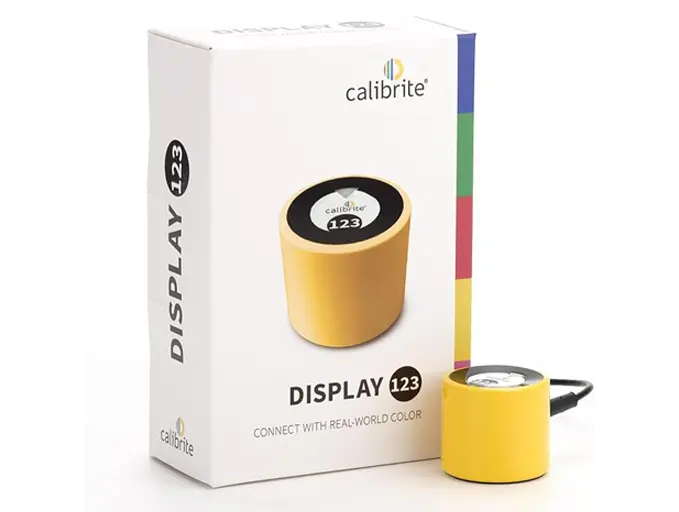
The long-standing gold standard for monitor calibration. Offers the highest accuracy and is used by professional photographers worldwide. Now sold as the Calibrite ColorChecker Display.
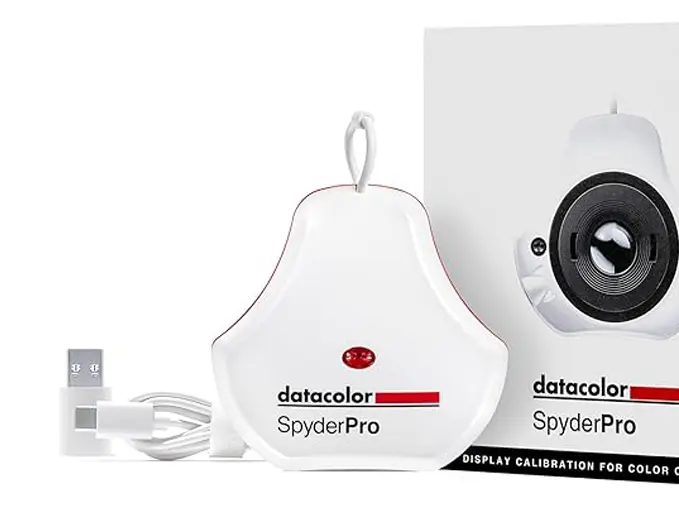
Datacolor SpyderPro
A more affordable alternative with solid accuracy, ideal for ambitious hobby photographers. Current model available on Amazon.
Calibrite ColorChecker Display
Successor to the i1Display Pro with improved software (ccProfiler) and usability, plus native support for wide-gamut and OLED displays.
Calibration recommendations

Two colorimeters I recommend today

The **Calibrite ColorChecker Display** is my tip for the highest color accuracy and OLED support — the **Datacolor SpyderPro** is the affordable alternative for classic IPS displays. Both work reliably with the ASUS ProArt, the Apple Studio Display and all common photo monitors.

Vergleich
Calibrite
Calibrite ColorChecker Display
Datacolor
Datacolor SpyderPro
Bild
Calibrite ColorChecker Display
Datacolor SpyderPro
EmpfehlungEditor's ChoiceBest Value
SensorColorimeter (filter-based)Colorimeter with 7-color sensor
ISO-BereichLCD · LED · OLED · wide gamut · HDRLCD · LED · wide gamut
AutofokusccProfiler · DisplayCAL compatibleSpyderPro software · automatic reminders
DetailSuccessor to i1Display Pro · USB connectionUSB · cross-platform (Win/macOS)
Stärken
  • +Pro accuracy at a sensible price
  • +Works with modern OLED and wide-gamut displays
  • +Simple software, professional results
  • +DisplayCAL-compatible for maximum flexibility
  • +Excellent value for money
  • +Simple, guided calibration — also for beginners
  • +Automatic re-calibration reminder
  • +Fast measurement time
Schwächen
  • Software feature set smaller than Eizo ColorNavigator
  • No ambient-light sensor in the basic variant
  • OLED support less mature than Calibrite
  • Smaller community/documentation than the X-Rite/Calibrite line
Geeignet fürAnyone wanting the highest color accuracy without a hardware-calibration monitor.Ambitious hobby photographers with a classic IPS display.
Wo kaufen

Calibration intervals and maintenance

How often to calibrate depends on the use and the monitor:

Professional use (IPS / Mini-LED)
Calibration every 2–4 weeks.
Ambitious hobby photographers
Calibration every 1–2 months.
Occasional use
Calibration every 3–6 months.
OLED and QD-OLED displays
Tighter cadence: every 2–3 weeks, because OLED pixels lose slightly in luminous output over time (especially blue). Current colorimeters like the Calibrite Display Plus HL detect OLED displays natively and apply adjusted spectral corrections.

High-quality monitors often have self-calibration or reminder functions that inform you about due calibrations. If you want to walk through the full practical workflow step by step, take a look at the monitor calibration guide — there I show how to create a reliable ICC profile in 20 minutes.

09
Future

HDR & Extra Features — Useful or Marketing?

Modern monitors offer plenty of extra features that can increase comfort and versatility. Not all are relevant for photo editing, but some can definitely be useful.

HDR support: from nice-to-have to workflow standard in 2026

HDR (High Dynamic Range) significantly expands the brightness and contrast range of images. For photography HDR is becoming increasingly relevant as modern cameras support HDR captures and printing techniques are evolving. More on the benefits of HDR in this in-depth guide.

Update May 2026: what was still a nice-to-have when this article was first published has become a real workflow standard in 2026. The drivers of this evolution:

Lightroom HDR editing (since 2024)
Adobe has added a full HDR editing mode to Lightroom Classic and Lightroom CC. You can edit HDR highlights, shadows and colors beyond the SDR range — but only meaningfully if your monitor can actually show HDR.
iPhone and Android HDR photos
Apple iPhones (from iPhone 12 with Smart HDR 3, from iPhone 14 with Apple Pro HDR) and newer Android flagships capture HDR photos by default (gain-map technology). These images look flat on SDR monitors — brilliant on HDR displays. If you edit for mobile devices, you should be able to see HDR too.
HDR export for web & social media
Instagram, TikTok and YouTube have supported HDR playback on compatible devices since 2024. If you export HDR images without verifying them on an HDR-capable display, you're handing over quality blind.
Apple Reference Mode (macOS Sequoia/Tahoe)
Since Sequoia, macOS supports a Reference Mode with correct HDR tone mapping — for Mini-LED displays like the Pro Display XDR, MacBook Pro M4/M5 or the Apple Studio Display Pro (should it appear in 2026).

However, not every HDR implementation is equal. Many consumer monitors advertise "HDR400" certification but come nowhere near the peak brightness or true local dimming required for clean HDR. The honest rule of thumb for HDR-capable photo monitors 2026: at least DisplayHDR 600, ideally DisplayHDR 1000 (Mini-LED) or DisplayHDR True Black 400/500 (OLED/QD-OLED). Anything below is marketing.

Useful software features

Picture-by-picture / split screen
Allows you to display different input signals at once or divide the screen for different applications.
Color modes
Preset profiles for different applications (sRGB, Adobe RGB, video editing).
Uniformity correction
Automatic correction of brightness and color differences across the screen surface.
Self-calibration
Some high-end monitors include built-in sensors for automatic calibration.

Future-proofing & trends — status 2026

When investing in a photo-editing monitor you should keep future developments in mind. What was still classified as "the future" when this article was first published is now reality in 2026 — and the next wave is already on the starting blocks:

Mini-LED & OLED — reality today, not the future
What was premium in 2024 is mainstream in 2026. Mini-LED editing monitors like the Apple Studio Display XDR or Eizo CG2700X sit in the upper four-digit range, OLED photo monitors like the LG UltraFine OLED Pro 27" or ASUS ProArt OLED PA27DCE-K likewise in the attainable premium segment. Classic IPS photo monitors with hardware calibration (BenQ SW272Q, Eizo CS2740) remain the safe middle for print without burn-in risk.
5K, 6K and 8K — slow resolution escalation
5K monitors (5120 × 2880, 218 PPI on 27") have become affordable in 2026 (Apple Studio Display €1,799, LG UltraFine 5K, Samsung ViewFinity S9). 6K (Apple Pro Display XDR, Dell UP3221Q) remains pro territory. 8K is still overkill in 2026 — the number of 8K photo monitors under €3,000 can be counted on one hand.
DisplayPort 2.1 & Thunderbolt 5 — the new bandwidths
DP 2.1 with UHBR 20 (80 Gbit/s) and Thunderbolt 5 (120 Gbit/s) have arrived in high-end editing monitors in 2026. Practical benefit: 8K @ 60 Hz, 4K @ 240 Hz or multi-monitor setups without bandwidth compromises. The best future-proofing for the next 3–5 years.
AI-supported calibration — now available
What was on the roadmap in 2024 is standard in 2026: Calibrite ccProfiler 2.0 (April 2026) uses AI for adaptive profile creation, Eizo ColorNavigator 8 (October 2025) detects ambient-light changes automatically and re-calibrates in the background, and DisplayCAL 3.10 integrates OpenCV-based spectral correction. Practical benefit: fewer manual interventions, consistent accuracy under changing daylight.
Burn-in warranties & pixel-refresh algorithms
OLED manufacturers now offer a 3-year burn-in warranty as standard (LG, Dell, ASUS). Pixel shift, automatic logo dimmers and temporary UI brightness reduction are part of the standard kit — making OLED editing monitors much more daily-usable than just two years ago.
Transparency notice: This article contains affiliate links. If you buy through them I earn a small commission at no extra cost to you. Editorial content is unaffected.
Newsletter

Stay in the loop.

Camera and photography news, honest gear tests and new articles — in your inbox. Infrequent but relevant. No spam, unsubscribe anytime.

Keep reading

From the journal.

Fotograf, Martin Fernando Mera Kleinheinz · Franz-Bork-Straße 21, 30163 Hannover · 0179 4085397