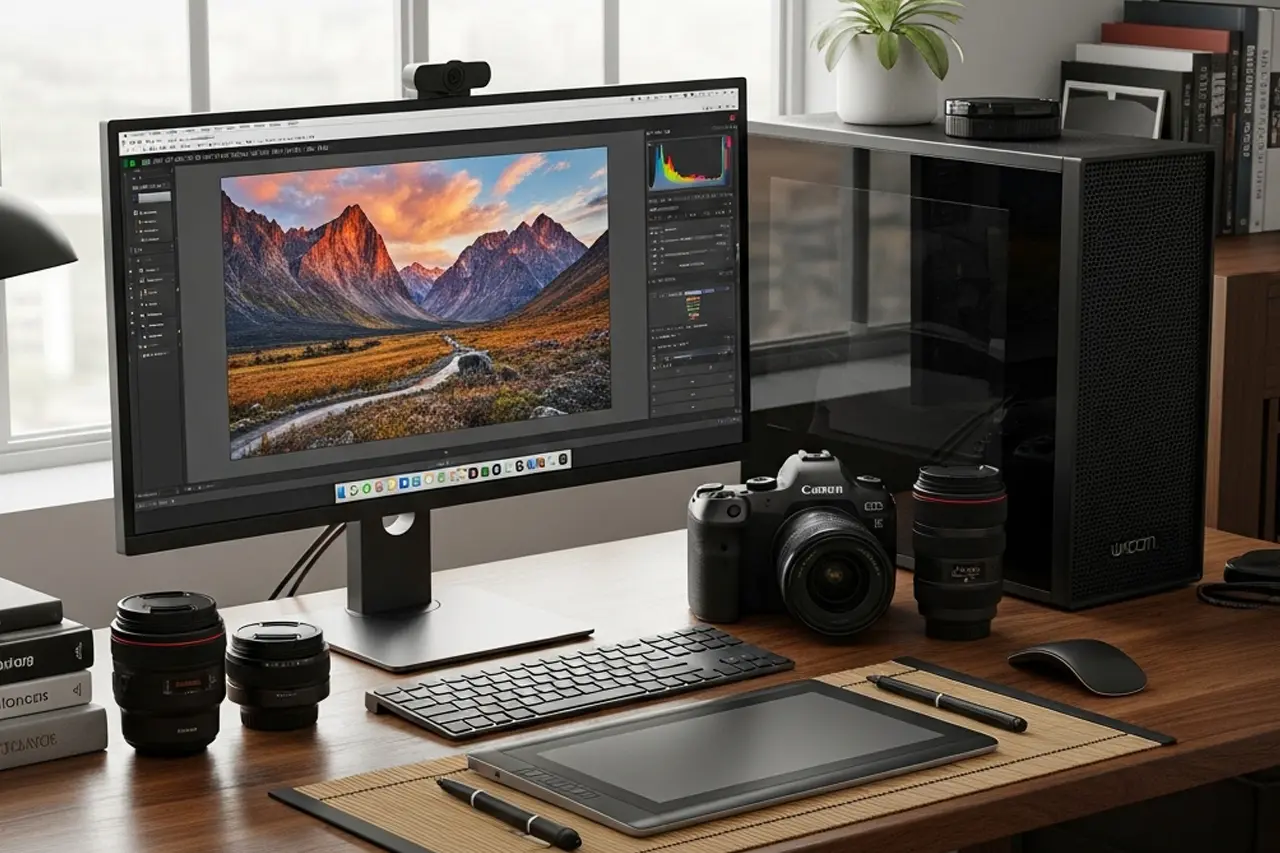
PC for Photo Editing 2026: Recommendations for Lightroom, Photoshop & AI
Clear PC picks plus the specs that matter: CPU, GPU, RAM and SSD for Lightroom, Photoshop and modern AI tools — from prebuilt to custom build and Mac.
Author
Martin Kleinheinz
Photographer · Hannover
Updated
August 24, 2026
Looking for a PC for photo editing — and want to know which machine actually handles Lightroom, Photoshop and AI tools? You get clear recommendations first, then the specs behind them.
AI features like Generative Fill, Lightroom Denoise or Topaz make the computer more decisive in 2026 than your next camera body. Below: two quick picks, then CPU/GPU/RAM — and whether a prebuilt, custom build or Mac fits you. Software basics: photo editing for beginners · display: monitor for photo editing.
00
Top recommendations
PC for photo editing: my 2 picks for 2026
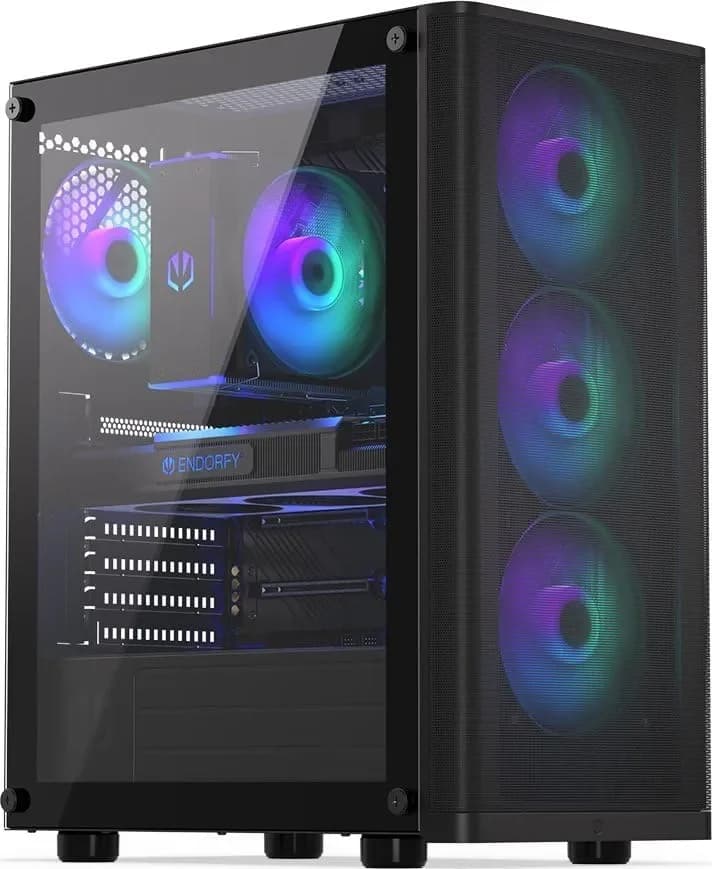
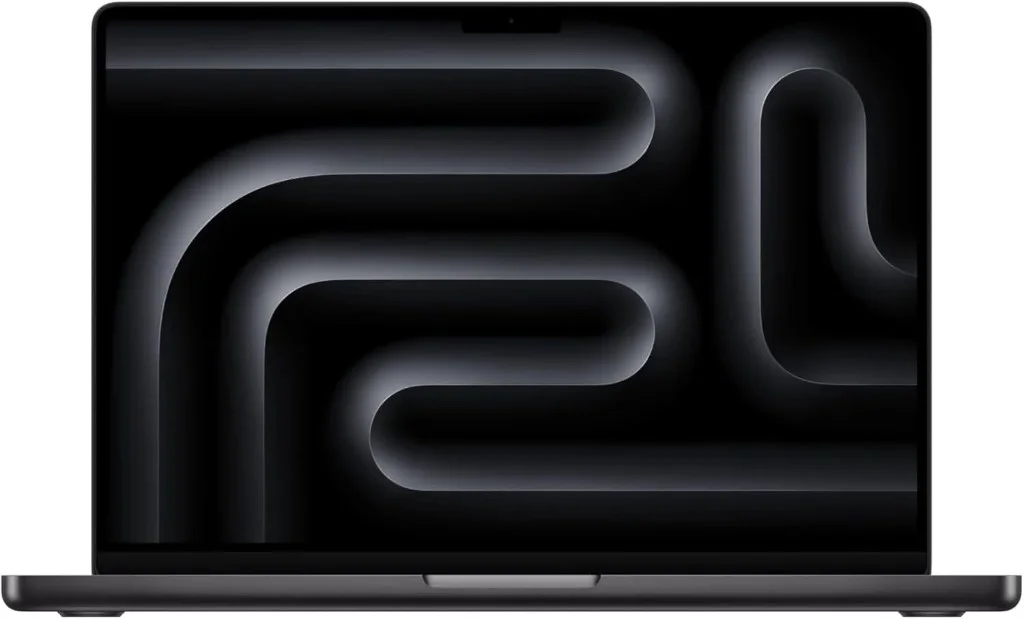
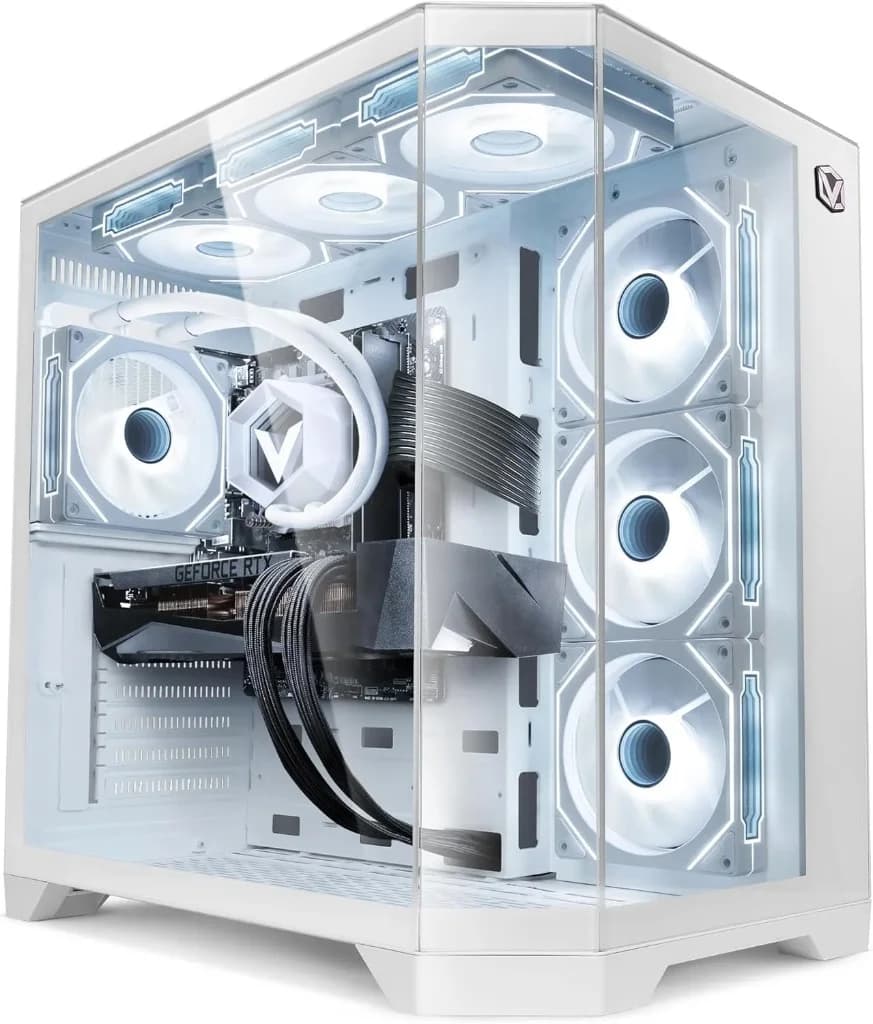
No appetite for spec sheets? These two setups cover most photo workflows — a Windows prebuilt for value and a MacBook Pro when you need mobile, max-smooth editing. Both are buyable today; reasoning and alternatives follow below.
Decide fast
Memory PC vs. MacBook Pro M5 Pro — Windows value or Apple power
On the left, the honest prebuilt under €2,000 for Lightroom, Photoshop and AI on Windows. On the right, the fastest photo notebook right now — mobile with maximum performance. Mid-range, custom builds and monitor setup come in the next sections.
The basis of a perfect photography PC lies in the right choice and combination of core components. Each part has specific jobs in your creative workflow — and saving money in the wrong place slows you down on every single image.
The processor (CPU): the brain of the operation
The processor, also called CPU (Central Processing Unit), is the central computing engine of your computer. It executes the instructions your software hands it. For photo editing, its performance dictates how quickly and smoothly you can work.
Single-Core vs. Multi-Core — what really counts for Lightroom & Photoshop?
To pick the right CPU, we need to understand a central concept: the difference between single-core and multi-core performance.
Single-core performance
This refers to the speed at which a single processor core can complete a task, often measured in gigahertz (GHz). Traditionally, many basic and interactive operations in Photoshop and Lightroom — applying a filter, moving a slider, painting with a brush — benefit from the highest possible single-core performance. A high clock speed creates a direct, responsive feel while working.
Multi-core performance
This describes the CPU's ability to spread a task across many cores at the same time. This used to be less relevant for photo editing, but the picture has changed fundamentally. Modern, CPU-intensive tasks like exporting hundreds of images, generating 1:1 previews, rendering video or running complex multi-core-optimized filters now use every available core to dramatically shorten processing time. Programs like Lightroom are designed today to benefit from as many cores as possible.
For 2026, a balanced ratio is key. You need a CPU with high single-core performance for smooth, interactive work and enough cores to handle batch processes and multitasking efficiently.
The big 2026 duel: Intel Core Ultra 200S Plus vs. AMD Ryzen 9000 X3D
Two giants face off in the CPU market: Intel and AMD. Both sharpened their platforms in 2025/2026 — but for photographers the choice is clearer today than two years ago.
Intel Core Ultra 200S Plus ("Arrow Lake Refresh")
Intel refreshed the Core Ultra 200 series with the "Plus" variants in late 2025. According to independent tests by Puget Systems, the Core Ultra 7 265K is the fastest CPU for Lightroom Classic — 4 % faster than the bigger 285K and even faster than AMD's Ryzen 9 9950X3D. The reason: Lightroom is surprisingly lightly parallelized, so raw single-thread speed matters more than core count. The new Plus variants — Core Ultra 9 285K, 270K Plus and 250K Plus — build on this lineup.
AMD Ryzen 9000 + 9000X3D ("Zen 5")
AMD pushed even further in 2025/2026 with the X3D generation (3D V-Cache). According to Puget benchmarks, the Ryzen 9 9850X3D is the fastest Photoshop chip on the market — 21 % faster than Intel's top model. If you work a lot with Topaz, Generative Fill or complex Photoshop compositing, AMD is clearly the better choice. The Ryzen 7 9800X3D sits below it as the price-performance miracle; the Ryzen 9 9950X3D is the all-rounder for photo + video.
Special focus: the AI accelerator revolution — NPU vs. GPU
With the current generation of modern processors, a new technology has become a fixed part of the PC: the NPU. Understanding it is essential to correctly assess a system's capabilities — especially if you work intensively with AI tools for photographers.
Explained simply: what is an NPU?
A Neural Processing Unit (NPU) is a highly specialized chip integrated directly into modern processors. Unlike a CPU or GPU, it has a single job: to perform AI calculations as quickly and energy-efficiently as possible. Think of it as a small, extremely frugal specialist responsible for certain recurring AI tasks. Both Intel's "Arrow Lake" and AMD's "Ryzen 9000" processors come with one.
Practice check: where does the NPU shine?
The NPU's strength lies in efficiency for continuously running or less compute-intensive AI tasks. A perfect example is the face recognition and automatic tagging of objects in your photo library that runs in the background. AI-powered OS features — like blurring your background during a video call — are also handled by the NPU. The key benefit: it offloads the main CPU and GPU, and on laptops it massively spares the battery because it uses far less power.
The introduction of the NPU is a fundamental shift in computer architecture. A PC's capability is no longer defined only by raw clock speeds or core counts, but by an intelligent interplay of specialized compute units. The NPU is not an alternative to the GPU but a crucial complement. The rise of AI in operating systems and everyday applications makes integrating NPUs necessary to run these functions efficiently without blocking the main components you need for creative work.
For you as a photographer that means: the NPU ensures the "AI everyday" of your PC doesn't slow down your creative workflow. But the GPU remains the decisive factor for the "AI power moments" in your image editing. Understanding this helps you avoid mistakenly assuming an NPU alone makes a strong graphics card unnecessary.
The graphics card (GPU): your visual turbo and the new AI powerhouse
The graphics card (GPU, Graphics Processing Unit) was long primarily relevant to gamers. For photographers, its role has changed dramatically: from a useful extra to an indispensable core component of a modern, efficient workflow.
More than just for gamers: why a dedicated GPU is essential for photographers in 2026
In the past, the integrated graphics unit (iGPU) built into the processor was enough for most image-editing tasks. Those days are definitively over for ambitious photographers. Adobe Photoshop, Lightroom and especially specialized AI tools like Topaz Photo (no longer "Topaz Photo AI" since October 2025), DxO PhotoLab or Luminar Neo deliberately offload extremely compute-intensive tasks to the GPU. A dedicated graphics card no longer accelerates just a handful of filters — it's the decisive performance factor for almost all AI features.
VRAM plain talk: how much video memory you really need
One of the most important — but often overlooked — features of a graphics card is its dedicated memory, the VRAM (Video RAM). The amount of VRAM is the most critical factor for AI applications. Picture it as the GPU's own desk: when complex AI models and high-resolution image data no longer fit on that desk, the GPU has to fall back on the much slower system RAM, and performance collapses dramatically.
From this, clear recommendations follow for 2026:
Minimum (entry-level): 8 GB VRAM
Thanks to NeuroStream and optimized Lightroom AI, this is enough for most standard workflows. Anyone working with RAW files under 45 megapixels and only occasionally using AI tools will get a long way here.
Sweet spot (all-rounder): 12 GB VRAM
Our clear recommendation for most ambitious photographers. This amount of memory offers a healthy buffer for complex composites, panoramas and parallel applications — and works without waiting times even with the largest Topaz models.
Pro (16 GB+ VRAM)
If you regularly edit medium-format files (e.g. 100+ MP from the Fujifilm GFX 100S II), build high-resolution panoramas or run 4K/8K video editing in parallel, more VRAM is a direct investment in a more responsive workflow.
The NVIDIA GeForce RTX 50 series in 2026: what you really need
The GeForce RTX 50 series shipped fully in early 2025 — last year's speculation is today's reality. Based on the "Blackwell" architecture, the cards bring 5th-generation Tensor Cores and the new DLSS 4 (Multi-Frame Generation) — both primarily for gamers, but the raw AI performance also benefits photographers. According to Puget Systems, the RTX 5070 Ti is the "sweet spot" for Lightroom and AI tools.
The most important models and their MSRPs (as of May 2026 — street prices often 15–30 % higher):
Model
VRAM
MSRP (USD)
Photo use case
RTX 5060
8 GB
$299
Entry, small RAW files
RTX 5060 Ti
8 / 16 GB
$379 / $429
Insider tip — the 16 GB variant beats pricier cards at AI
RTX 5070
12 GB
$549
Solid all-rounder for most photographers
RTX 5070 Ti
16 GB
$749
Sweet spot for photo + video
RTX 5080
16 GB
$999
Pro setup, 4K/8K video editing
RTX 5090
32 GB
$1,999
High-end, medium format, studio workloads
RTX 50 lineup for photographers (source: NVIDIA, May 2026).
Memory (RAM): your creative short-term storage
Memory (RAM, Random Access Memory) is your computer's active workspace. Think of it as the surface of a desk: every open image, every layer in Photoshop, every browser tab and every running program takes up space on it. If the desk is too small, everything slows to a crawl because the computer is forced to constantly swap items into a drawer (the much slower SSD) and back out. Sufficient RAM is therefore essential to a fluid creative process.
The 2026 golden rule: 16 GB, 32 GB or 64 GB?
Memory requirements have risen steadily in recent years. High-resolution RAW files, complex edits and running several programs in parallel all take their toll.
16 GB RAM
This is the absolute minimum for a new photo-editing PC in 2026. It's enough for editing individual images and basic multitasking. But you'll quickly hit the wall when you regularly use Lightroom and Photoshop together, browse the web alongside, or work on larger projects like panoramas and HDR. For a smooth workflow this is no longer recommended.
32 GB RAM
This is the new "sweet spot" and our clear recommendation for the vast majority of ambitious photographers. This capacity provides enough headroom to switch effortlessly between Lightroom, Photoshop and a browser with many tabs open without the system stalling. It's also the right choice for resource-intensive stitching of large panoramas or editing files from very high-resolution cameras (e.g. 45 megapixels and up).
64 GB RAM (or more)
This is the domain of pros and power users. If your daily workflow involves extremely large files (e.g. from digital medium-format cameras), complex composites with dozens of layers or simultaneous 4K/8K video editing, 64 GB is a sensible and necessary investment. It eliminates RAM as a potential bottleneck and ensures maximum performance even for the most demanding tasks.
DDR5: the new standard and why it's worth it
Beyond capacity, the technology of your memory matters too. DDR5 is the newer, faster generation of RAM and has established itself as the standard for modern systems. It offers higher clock speeds and greater data bandwidth than its predecessor DDR4.
Storage (SSD): the foundation of a responsive workflow
Nothing slows down an otherwise fast computer as much as slow storage. Choosing the right storage media is fundamental to the perceived speed and responsiveness of your entire system.
The end of the hard drive (HDD): why an NVMe SSD is non-negotiable
For decades, the traditional hard drive (HDD) with its spinning magnetic platters was the standard. In a modern photo-editing PC for 2026, it has no place as the primary drive for the operating system and active projects. It is the biggest potential bottleneck in a modern system. The mechanical access times are many times slower than any kind of SSD.
SSD (Solid State Drive)
An SSD has no moving parts and works purely electronically. The difference in practice is night and day: your OS boots in seconds, programs open without noticeable lag and the entire system feels agile and responsive.
NVMe SSD
This is the current gold standard for the fastest available SSDs. While older SATA SSDs use a connection that caps their speed at about 550 MB/s, NVMe SSDs connect directly to the motherboard over the extremely fast PCIe interface. That enables breathtaking speeds. Modern NVMe SSDs (PCIe 4.0 or 5.0) reach read and write rates of over 7,000 MB/s. For a photographer that means: lightning-fast loading of huge RAW files, smooth scrolling through your library and extremely fast save and export operations.
The perfect storage strategy: a battle-tested multi-drive setup
To combine maximum performance with cost-effective storage space, a multi-drive strategy has proven itself. Each drive serves a specific purpose:
Drive 1 (system & programs)
A fast NVMe SSD with at least 500 GB, ideally 1 TB. Install your operating system (Windows or macOS) and all your programs (Adobe Creative Cloud, Luminar, Topaz etc.) here. This is the foundation for the maximum responsiveness of your entire system.
Drive 2 (active projects & catalog)
A second, large NVMe SSD with at least 2 TB. This drive is your active workspace. Store your Lightroom catalog, program caches and the image files of projects you're currently working on here. The high speed of this SSD massively accelerates image loading, preview generation and the caching of editing steps.
Drive 3 (archive & backup)
A large, traditional HDD (e.g. 8 TB or more) or a large SATA SSD. Store completed projects, your long-term archive and backups here. For pure archive access, where every millisecond doesn't matter, HDDs still offer the best price-per-terabyte ratio.
Lightroom Presets9 film looks inspired by Portra, Kodak & Fuji —View pack →
02
Platform & peripherals
The platform decision and the perfect peripheral setup
Alongside hardware choices, the platform decision and the right peripheral setup also play an important role. The best CPU helps little if your monitor or input devices slow you down.
Mac vs. PC: the big 2026 decision
The choice between Mac and PC used to be a philosophical question. In 2026 it has become a technical one — and Apple flipped the table in March with the M5 Max. That's not a PR phrase: in the independent PugetBench benchmarks for Photoshop and Lightroom Classic, the M5 Max in the MacBook Pro beats not only the M3 Ultra in the Mac Studio but also an RTX 5090 in the strongest Windows laptop (ASUS ProArt P16). Anyone weighing the choice in 2026 should rethink both sides.
Apple silicon 2026: the current photo lineup
Apple's lineup gained significant clarity in 2025/2026. The following models are relevant for photographers:
MacBook Pro 14"/16" with M5 Pro or M5 Max (March 2026, from €2,599)
The current recommendation for laptop users. The **MacBook Pro 14" with M5 Pro** (24 GB / 1 TB) is Amazon's Choice in the pro segment on Amazon DE. The larger M5 Max with up to 40 GPU cores and 192 GB of unified memory is, in PetaPixel's words, "the best computer we have ever tested for Photoshop" — including all Windows workstations. PugetBench score for Photoshop: 15,875 (M5 Max 16") vs. 10,096 (RTX 5090 laptop). If you work mobile, you get more photo power here than at any Windows desktop under €4,000.
Mac Studio with M4 Max (March 2025, from €2,499)
The current desktop recommendation — the Mac Studio with M5 Max/Ultra isn't expected until October 2026. The M4 Max in the Studio sits ahead of every Mac below the M3 Ultra in Lightroom benchmarks and costs around €4,000 less than the Ultra variant. It's already overkill for most photo workflows.
Mac mini with M4 or M4 Pro (from €699)
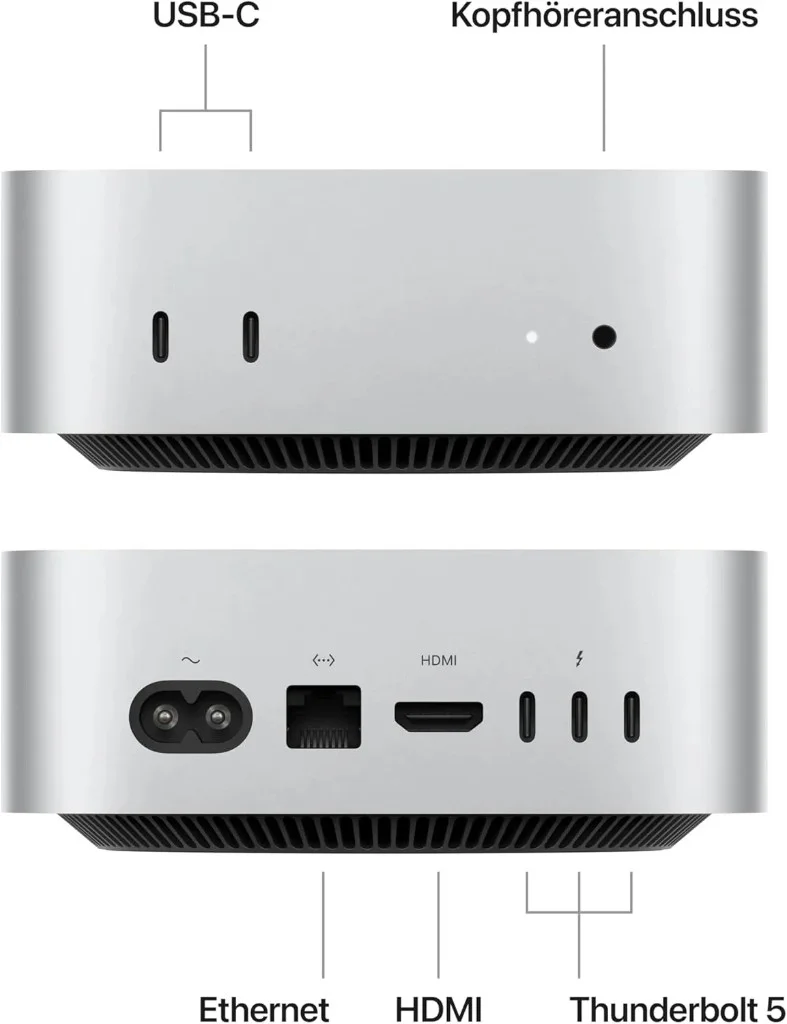
The insider tip for ambitious hobby photographers on a tight budget. The **Mac mini M4 Pro with 24 GB RAM and 512 GB SSD** (around €1,500 on Amazon DE, bestseller No. 1 in mini PCs) offers photo performance that would cost you at least €1,800 on the PC side — including mouse, keyboard and a good monitor.
Mac Studio with M3 Ultra (March 2025, from €4,499)
Apple's current king — but only makes sense if you work intensively with video, 3D or several AI models in parallel. For pure photography, the M4 Max is the smarter choice: similar Lightroom performance at less than half the price.
The PC perspective in 2026: maximum flexibility and unmatched AI software
A modern Windows PC still offers photographers significant advantages — some of which Apple hasn't caught up on:
◆Larger software library: some AI tools (e.g. ON1 NoNoise AI in specific workflows, plugins for industry workflows) still only run on Windows or run faster there.
◆Flexibility: you can upgrade individual components — more RAM today, a new GPU in two years. With Apple you're buying hard-wired hardware.
◆Cost-effectiveness in the mid-range: a custom PC with RTX 5070 Ti and 64 GB RAM costs around €2,500. The comparable Mac (M4 Max with 64 GB) is €3,500+.
◆Multiple monitors + ergonomics: up to four displays at once, no problem. The Mac mini and Studio can do this too — the MacBook Pro is more limited.
◆Gaming + photo in one machine: if you also play, the Windows side offers more selection — and gaming hardware is often cheaper than pure workstations.
The perfect peripheral setup for maximum productivity
The best hardware helps little if your peripherals slow you down. A well-thought-out setup can boost your productivity enormously.
The display: your window into the creative world
A high-quality monitor isn't negotiable for photographers. The key criteria for 2025/2026:
◆Resolution: minimum 4K (3840 × 2160 pixels), ideally 5K or more for detail-rich work.
◆Color spaces: 100 % sRGB and at least 95 % DCI-P3/Adobe RGB.
◆Panel type: IPS or OLED for the best viewing-angle stability.
◆HDR: at least DisplayHDR 400, better 600 or 1000.
Input devices: the extension of your creative hand
The right input devices can speed up your workflow significantly:
Graphics tablet
A must for precise retouching and masking. Wacom remains the gold standard, but alternatives like XP-Pen now offer very good quality.
Keyboard
A good keyboard with programmable macro keys can automate repetitive tasks. Mechanical keyboards offer the best typing feel for long sessions.
Mouse
An ergonomic mouse with a high DPI count and programmable buttons is worth its weight in gold. Models like the Logitech MX Master series are optimized for creative pros.
Stream Deck
Optional, but very useful. With a Stream Deck you can trigger complex actions at the press of a button and dramatically speed up your workflow.
Calibration: the key to color accuracy
A color measurement device is indispensable for every serious photographer. The latest generation of colorimeters offers improved accuracy even on modern wide-gamut displays. How the process works in practice is shown in the step-by-step guide on monitor calibration.
◆Datacolor SpyderX Elite: the all-rounder with very good price-performance.
◆X-Rite i1Display Pro Plus: the pro standard with the highest precision.
◆Calibrite ColorChecker Display Plus: the newest generation with improved OLED support.
03
Practice & buying advice
Concrete recommendations for every budget
Concrete recommendations for different budgets and use cases — so by the end of this guide you know exactly which components match your workflow.
Three paths to the 2026 photo workstation: custom PC, prebuilt or Mac
Before we go through specific setups: in 2026 you have three realistic options to get a powerful photo computer. Each path has clear strengths — and most buyers make the wrong choice out of habit. Here are the three paths compared head-to-head:
Criterion
Custom PC (DIY / configurator)
Prebuilt (Amazon, NBB, Cyberport)
Apple Mac
Price/performance
★★★★★ Best ratio
★★★★☆ Small surcharge for assembly
★★★☆☆ Premium surcharge, full package
Ready to use immediately
No (DIY) / Yes (configurator)
Yes (plug-and-play, OS installed)
Yes (Apple Setup Assistant)
Upgrade options
★★★★★ Everything swappable
★★★★☆ Mostly swappable
☆☆☆☆☆ RAM/SSD soldered
AI power (Topaz, AI Denoise)
Top with RTX 50
Top with RTX 50
Top with M5 Max, good with M4 Pro/Max
Noise level
Configurable (silent possible)
Varies by manufacturer
★★★★★ Practically silent
Ecosystem (iPhone, iPad)
Limited
Limited
★★★★★ Seamless
Service & warranty
Per-component warranty
1–3 years on the whole system
1 year (Apple Care +2 years)
Custom PC, prebuilt and Mac compared head-to-head — each path has its strong suit.
My specific 2026 top picks
Four *photo computers* you can't go wrong with
From the wide market selection, I've picked four models I'd recommend today — two prebuilts (Memory PC, Vibox) and two Macs (Mac mini M4 Pro, MacBook Pro 14" M5 Pro). All are directly available on Amazon DE and cover the two budget tiers most photo buyers operate in.
Vergleich
Memory PC
Memory PC Ryzen 7 9700X · RTX 5060 Ti 16GB
Apple
Apple Mac mini · M4 Pro · 24 GB · 512 GB
Vibox
Vibox Editing PC · Ryzen 7 9800X3D · RTX 5070 Ti 16GB
For ambitious hobby photographers who work regularly in Lightroom and occasionally use AI tools. All three paths deliver solid results here.
Custom PC or configurator (~€1,700)
AMD Ryzen 7 9700X · GeForce RTX 5060 Ti 16 GB · 32 GB DDR5-6000 · 1 TB NVMe SSD + 2 TB SATA · 750 W Gold PSU. Buildable via Mindfactory, Memory PC or a configurator (e.g. dubaro.de). Best price-performance if you're up for the tinkering.
Prebuilt from the factory (~€1,800–€2,000)
My current top pick: the **Memory PC Ryzen 7 9700X + RTX 5060 Ti 16 GB** on Amazon DE. 32 GB DDR5, 1 TB NVMe, Windows 11 Pro, 2-year warranty — fully configured at the factory, with German components. Alternatively CSL, Captiva or ML Computers with similar specs. Complete package, no tools, no driver hunting.
Apple setup (~€1,500–€1,800)
The **Apple Mac mini M4 Pro** with 12-core CPU, 16-core GPU, 24 GB unified memory and 512 GB SSD is the fastest Lightroom machine per euro in 2026 — bestseller No. 1 in mini PCs on Amazon DE. Heads-up: upgrading the SSD to 1 TB costs +€200 from Apple — plan an external Thunderbolt 5 SSD for your photo library.
Enthusiast setup (€2,500–€3,500) — pro workflow
The sweet spot for professional photographers. Fast work with large RAW files (45+ MP), complex AI operations without waiting, smooth multitasking with Lightroom + Photoshop + browser + Capture One in parallel.
Custom PC (~€2,500)
AMD Ryzen 9 9850X3D or Intel Core Ultra 7 265K · GeForce RTX 5070 Ti 16 GB · 64 GB DDR5-6000 · 2 TB NVMe Gen4 + 4 TB SATA · 850 W Gold PSU. According to Puget Systems, this configuration is the "sweet spot" for Lightroom + Photoshop. The AMD variant: top in Photoshop; the Intel variant: top in Lightroom.
Prebuilt (~€2,500–€3,200)
My concrete tip: the **Vibox Editing PC with Ryzen 7 9800X3D and RTX 5070 Ti 16 GB** on Amazon DE. The 9800X3D is the fastest Photoshop CPU on the market according to Puget Systems (3D V-Cache) — combined with the sweet-spot GPU for photo + video, water cooling and a 2-year warranty. Alternatively editing PCs from Mifcom, Memory PC or ML Computers. If you use Lightroom + Premiere Pro in parallel, go for the Intel-265K variant instead (Quick Sync helps with video export).
Apple setup (~€3,000–€3,500)
The **MacBook Pro 14" with M5 Pro** (15-core CPU, 16-core GPU, 24 GB unified memory, 1 TB SSD, Liquid Retina XDR display with 1,600 nits HDR) is Amazon's Choice in the photo segment in 2026 — Apple's M5 family even beats RTX 5090 laptops in PugetBench Photoshop according to PetaPixel. If you need the maximum photo performance in a laptop, go for the M5 Max variant (about €1,000 more). Desktop alternative for similar performance: the Mac Studio M4 Max.
Professional setup (€4,500+) — studio & agency
Maximum performance without compromise. For studio photographers, agencies and users with medium-format workflows or parallel 8K video editing.
Custom PC (~€4,500–€5,500)
AMD Ryzen 9 9950X3D or Threadripper 9970X · GeForce RTX 5080 16 GB or RTX 5090 32 GB · 128 GB DDR5-6400 · 4 TB NVMe Gen5 + 8 TB SATA · 1,000–1,200 W Platinum PSU. This configuration handles medium-format files, 8K video and parallel AI tasks without visible lag.
Prebuilt workstation (~€5,000–€7,000)
HP Z2 Mini G9 / HP Z4 G5 Workstation, Lenovo ThinkStation P3 / P7, Dell Precision 3680 — the certified workstation models come with ECC RAM, NVIDIA RTX A series (Quadro successor) and multi-year on-site warranty. More expensive than gaming builds, but pro service.
Apple setup (~€5,000–€7,500)
Mac Studio M3 Ultra (32-core CPU, 80-core GPU) with 96 GB unified memory and 2 TB SSD ≈ €6,299. The current Apple king — the M5 Ultra in the Mac Studio isn't expected until October 2026. For pure photo workflows, the M4 Max Studio is usually the smarter choice; the M3 Ultra only pays off with intensive video + 3D work.
Practical buying tips and timing
The right timing and the right strategy can save you significant money:
Best times to buy
Major hardware releases mostly cluster in Q1 and Q2. Wait for them, as they not only bring new flagships but also significantly cut the prices of the previous generation.
Price tracking
Use price comparison sites and set price alerts on the components you want. Especially with GPUs and SSDs, short-term offers with significant discounts come up frequently.
Upgrade strategy
If you already own a relatively recent PC, you don't have to replace everything at once. Often a targeted upgrade of a single component (e.g. GPU or RAM) delivers a noticeable performance boost.
04
Conclusion
Your path to the perfect 2026 photo workstation
The demands on a photo workstation have changed fundamentally with the arrival of AI. A powerful computer is no longer a luxury but an essential tool that helps you realize your creative vision faster and more efficiently. The good news: in 2026 you don't have to lock yourself into one path — custom PC, prebuilt and Apple Mac are all good answers depending on personality and workflow.
The most important takeaways for your purchase:
◆GPU with ≥ 12 GB VRAM is the key to fast AI performance — but thanks to NeuroStream, 8 GB goes further today than in 2024.
◆32 GB RAM is the new minimum for a future-proof workflow; 64 GB is the sweet spot for pros.
◆A fast NVMe SSD for OS and active projects is non-negotiable — ideally a second for the Lightroom catalog.
◆Lightroom-focused? → Intel Core Ultra 7 265K or Apple M4 Pro. Photoshop + AI? → AMD Ryzen 9 9850X3D or Apple M5 Max.
◆Don't underestimate quality peripherals — monitor and input devices often affect your productivity more than €200 more on the CPU.
◆Prebuilt PC or Mac is no longer a fallback in 2026 — both offer plug-and-play comfort without giving up performance.
Remember: a well-configured photo workstation is an investment in your photographic future. It should not only meet today's requirements but leave room for growth and new technology. With the recommendations from this guide you're well equipped to make the right decision for your individual setup — whether you screw it together yourself, want a finished computer out of the box or choose the Apple ecosystem.
From my workflow
35mm & 120mm film presets
Portra, Kodak Gold, Velvia, HP5 & more — ready-made XMP presets for Lightroom Classic and mobile.
Transparency notice: This article contains affiliate links. If you buy through them I earn a small commission at no extra cost to you. Editorial content is unaffected.
◆ Newsletter
Stay in the loop.
Camera and photography news, honest gear tests and new articles — in your inbox. Infrequent but relevant. No spam, unsubscribe anytime.