iPhone Camera Settings 2026: ProRAW, Video & the optimal setup
Which iPhone camera settings actually make sense — formats, storage, Photographic Styles, photo modes and video from 4K to ProRes, explained clearly.
Author
Martin Kleinheinz
Photographer · Hannover
Updated
August 22, 2026
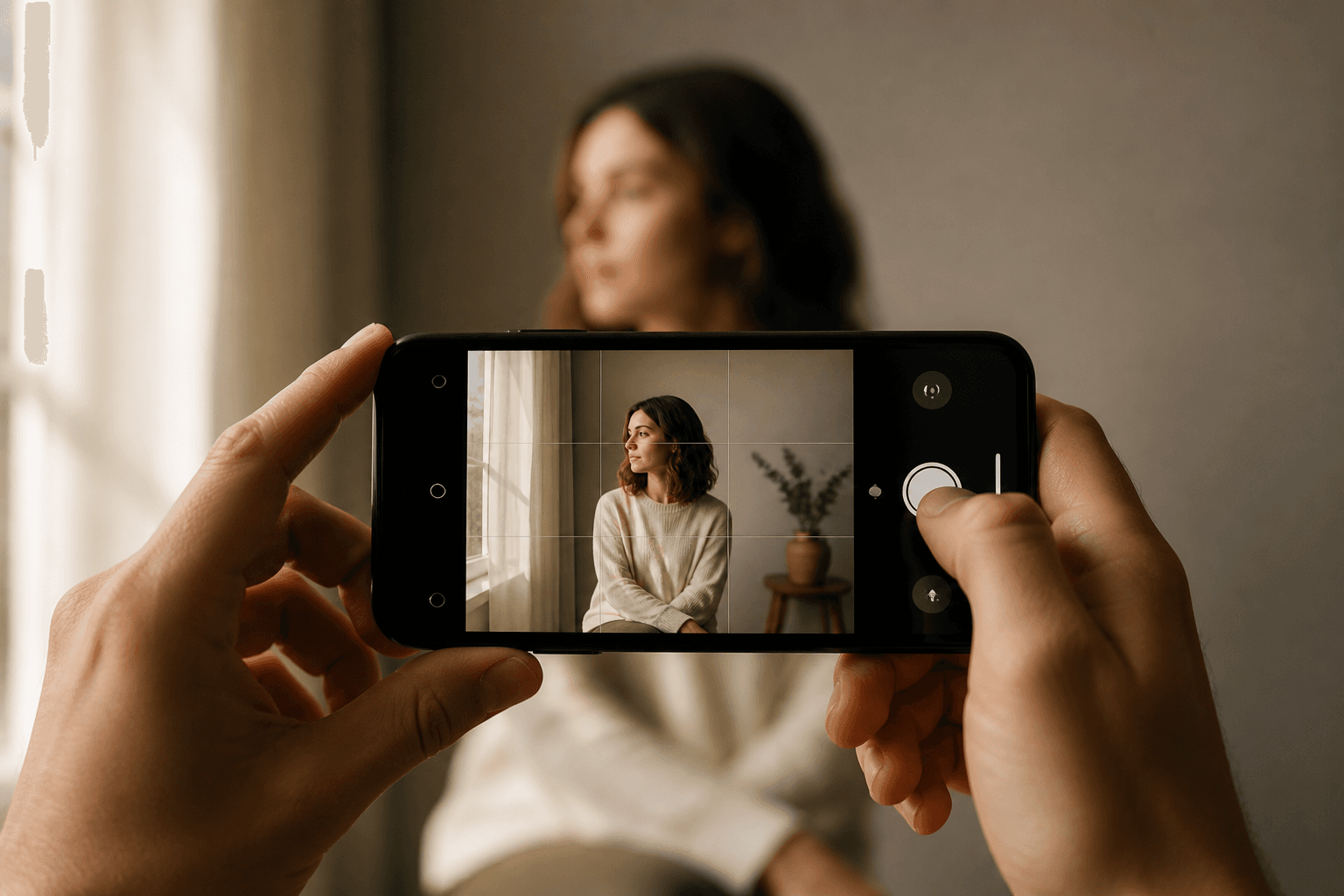
In Smartphone Photography we deliberately only touched on which iPhone settings help immediately — grid, focus lock, optical zoom. Here we go deeper: formats, storage, ProRAW, Photographic Styles and video — everything Apple hides in menus and what you set once cleanly instead of guessing per shot.
Important upfront: you don't need to enable everything. More options ≠ better images. ProRAW without editing is larger and often flatter than good HEIF. ProRes video without an editing workflow is expensive storage with no benefit. This guide explains what each option is for — and when to leave it off.
00
Quick
The optimal start setup
If you only have five minutes, set exactly this — the rest of the article explains why.
Setting
Path
Recommendation
Grid
Settings → Camera → Grid
On
Formats
Settings → Camera → Formats
"Most Compatible" or "High Efficiency" (HEIF) — no ProRAW permanently
ProRAW
Camera app → RAW icon
Off — enable per shot only
Preserve Settings
Settings → Camera
Off (save storage)
HDR
Automatic
On — test off if ghosting with movement
Video resolution
Settings → Camera → Record Video
4K · 30 fps (default)
Stabilisation
Settings → Camera → Video
Enhanced stabilisation on
Microphone
Settings → Camera
Stereo · directional "Standard" or "Voice Isolation"
Start configuration for most iPhone users
◆ Lightroom PresetsBundle
Photos with film character
9 Lightroom presets inspired by Portra, Kodak, Fuji & Ilford — for street, portrait and landscape. One-time €29, no subscription.
Everything that applies permanently sits in iOS Settings — not in the Camera app. Go through once, then forget.
Grid, mirror, preserve settings
Grid
Shows rule-of-thirds lines — essential for composition. On.
Mirror front camera
Selfies mirrored like in a mirror — taste. For consistent profile photos often off.
Preserve Settings
Saves settings briefly before/after shutter — useful for movement, eats storage. Off except for sport/kids.
Prioritise faster shooting
Slightly reduce quality in bursts for speed — on if you use burst for kids.
Composition aids
Enable Level (horizontal guide) and Grid together — especially for architecture and landscape. View Outside the Frame shows what would be cut at the edge — helps tighter framing.
Formats (overview)
Under Formats you choose between Most Compatible (JPEG + 12 MP) and High Efficiency / Max Resolution (HEIF/HEIC, full sensor resolution). For 99% of users: HEIF. Details in section 02.
02
Formats
HEIF, JPEG & ProRAW — and storage
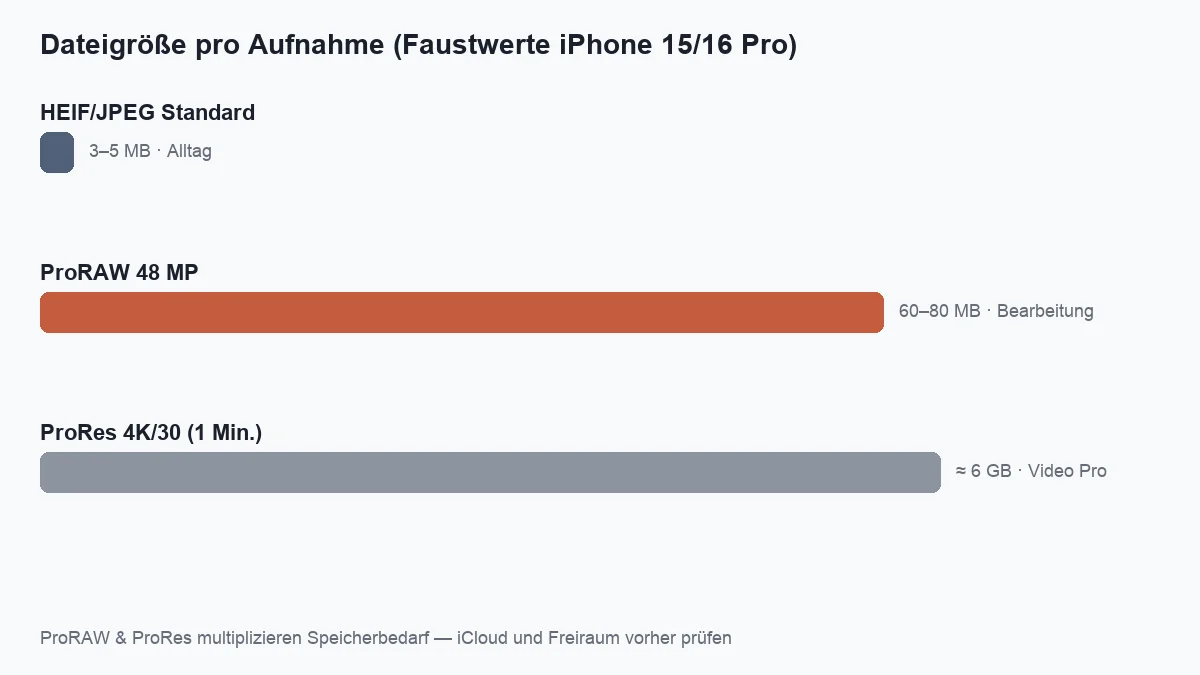
The most common misunderstanding: ProRAW always on = pro. Wrong. ProRAW is a raw file with Apple's computational processing data — large, flexible in editing, pointless without a development workflow.
Format
Typical size
When to use
HEIF/HEIC (default)
3–5 MB
Everyday, social, family — best balance
JPEG (Most Compatible)
4–8 MB
When Windows/older apps can't read HEIF
ProRAW 48 MP
60–80 MB per image
Important subjects, difficult light, later development
ProRAW + HEIF parallel
Sum of both
Only if you really need both — otherwise double storage
Rule of thumb iPhone 15/16 Pro — depends on subject and scene
ProRAW and ProRes multiply storage needs — check free space and iCloud first
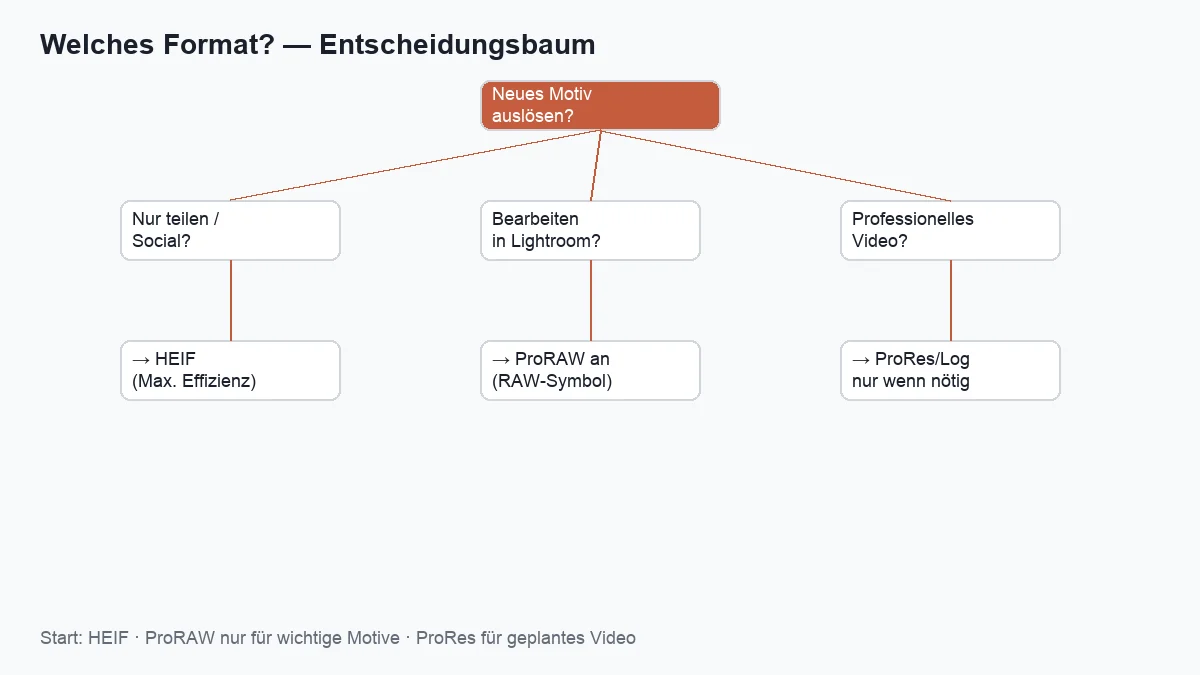
Which format? — HEIF for sharing, ProRAW for editing, ProRes only for planned video
Enabling ProRAW correctly
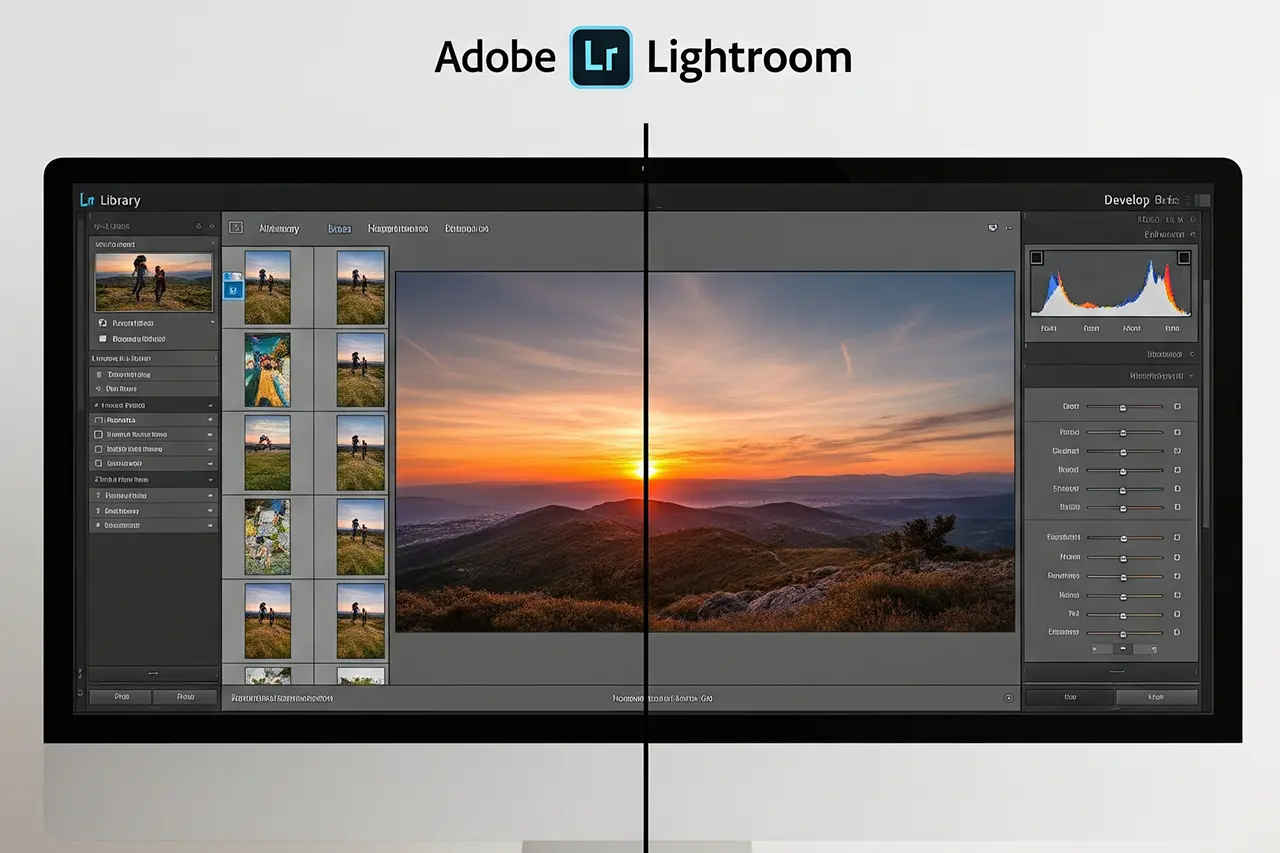
Don't enable permanently in Settings. In Camera app tap RAW at the top — for this shot only. Turn off after shooting. Develop in Lightroom Mobile, Darkroom or on desktop — see What is Lightroom.
48 megapixels — when does it make sense?
Default is often 24 MP with pixel binning — sharper in low light, less storage. 48 MP pays off in daylight, on a tripod or for very large crops. In app: HEIF Max or 48 MP mode (model-dependent under photo options). For snapshots: 24 MP is enough.
03
Look
Photographic Styles & Smart HDR
Photographic Styles aren't Instagram filters — they change the default pipeline of contrast, saturation and skin tones before you shoot. Apple offers presets (Standard, Rich Contrast, Vibrant, Warm, Cool) plus fine-tuning.
Recommendation for beginners
Standard or slightly Warm — subtle, skin tones stay natural.
Rich Contrast / Vibrant
More punch for landscape — on portraits skin quickly looks unnatural.
With ProRAW
Style affects preview — in ProRAW you often develop anew. Don't choose extreme styles.
Smart HDR
HDR combines multiple exposures — sky and shadows at once. Usually leave on. With fast movement (running kids, water) you can get ghosting — then turn HDR off for the series or choose shorter exposure. More on the logic: Exposure correction.
Lightroom Presets9 film looks inspired by Portra, Kodak & Fuji —View pack →
04
Photo
In the Camera app — photo modes & control
The Camera app is deliberately minimal. You should know these controls — regardless of iPhone model (from iPhone 13, details vary slightly).
Focus, exposure, lock
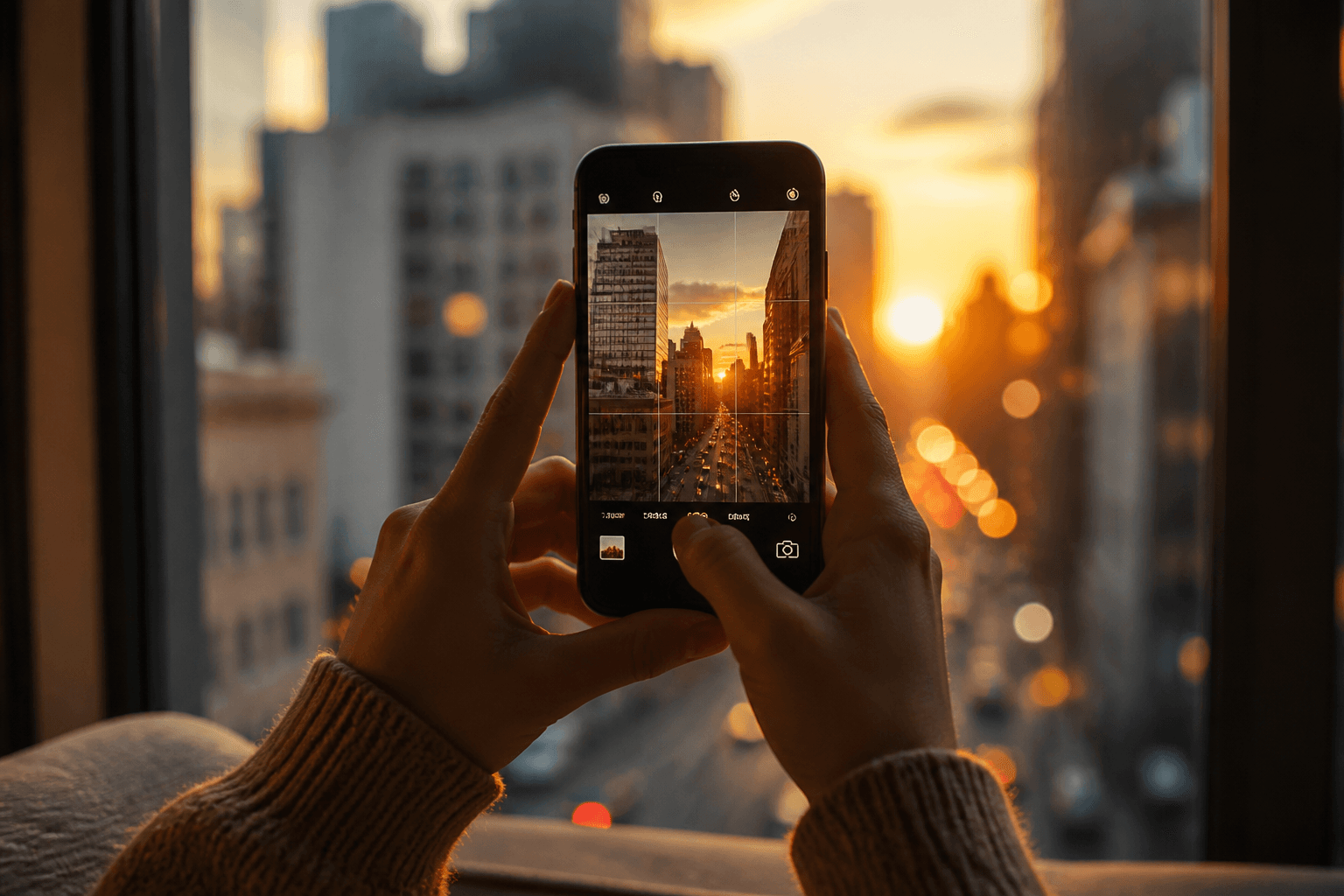
Tap subject → AE/AF Lock by long-pressing. Sun slider next to focus box for brightness. In strong contrast: tap face and raise brightness — not the sky.
Hold still — shorten exposure at moon icon for movement
Pano
Wide scenes
Pan slowly, keep arrow in centre
Macro
Close detail (Pro)
Automatic when close — enough light, otherwise soft
Photo modes — when which mode makes sense
Zoom & flash
Optical zoom steps only — everything beyond is crop. Flash in large rooms almost always off; as fill flash only close to subject. More in the phone guide.
Live Photos
Short sequence around the shutter — useful for movement, +3–5 MB per image. Turn off for maximum storage savings. In Photos app: set best frame as Key Photo.
05
Video
Video — resolution, FPS, ProRes & Log
iPhones are first-class video cameras. For Reels, YouTube and family, the standard app often suffices — if you know which settings drive storage, heat and battery.
Setting
Everyday recommendation
Pro / edit
Resolution
4K
4K — 1080p only when storage critical
Frame rate
30 fps
60 fps for sport/slow-mo source · 24 fps for "film look"
HDR video
On (default)
Off if editing software has issues
Action mode
On for movement
Strong crop — use deliberately
ProRes
Off
Only with 256 GB+ and edit plan (DaVinci, FCP)
Log / Apple Log
Off
For colour grading — needs post-processing
Cinematic mode
Sparingly
Nice look — AF can struggle in difficult light
Video settings under Settings → Camera → Record Video
ProRes & storage
ProRes 4K/30 roughly eats 1–2 GB per minute — model and scene dependent. Apple Log adds flexibility but zero finished image without grading. For Instagram Reels: normal 4K/30 is plenty.
Stabilisation & Action mode
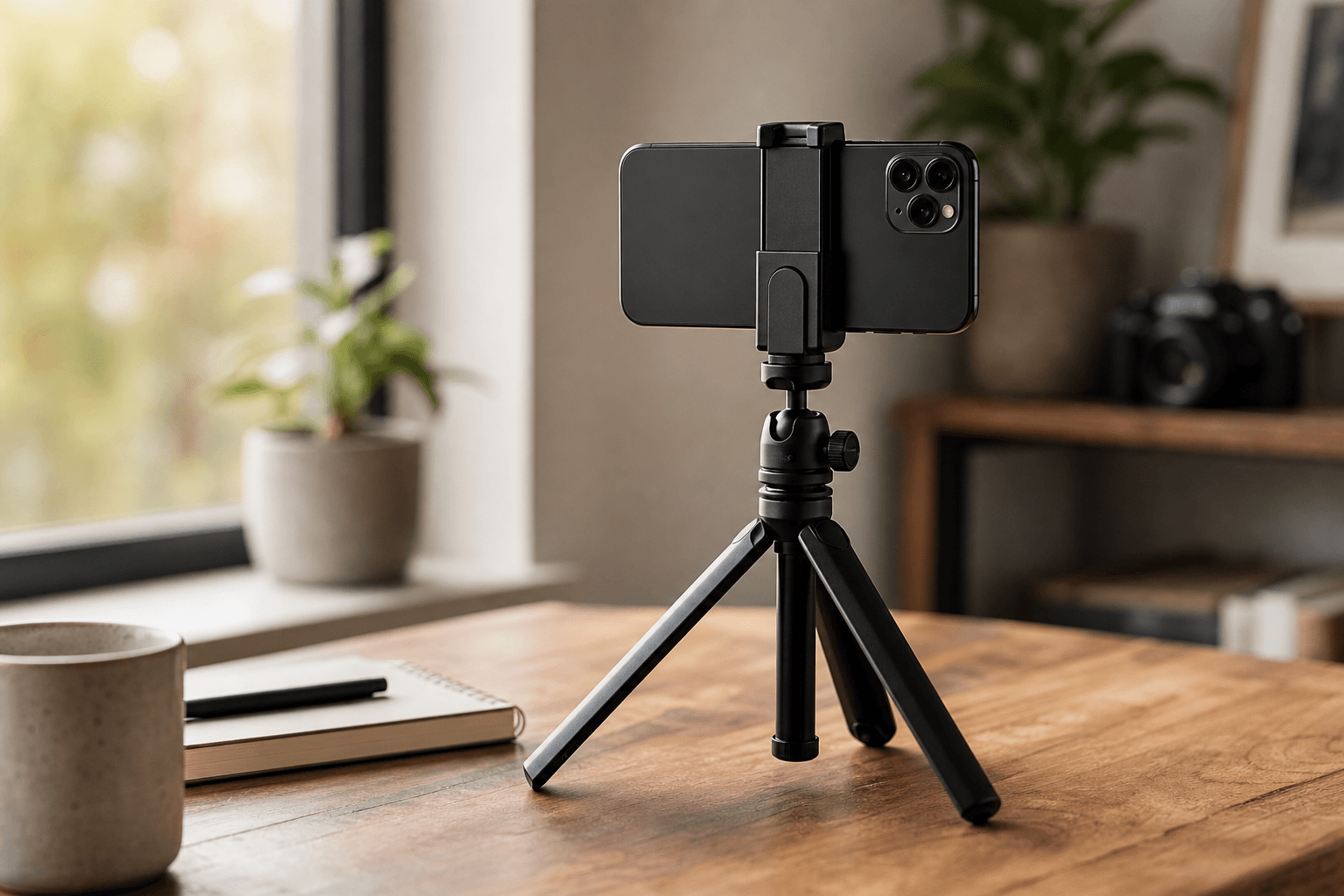
Enhanced stabilisation for walking shots on. Action mode for running scenes — crops more into the frame. For static interviews: Action mode off, camera on smartphone tripod.
06
Storage
Storage & iCloud — surviving ProRAW
The best settings don't help if the iPhone is full and the Camera app blocks the shutter. Plan storage like a roll of film.
◆128 GB — HEIF everyday ok; ProRAW only occasionally; ProRes video taboo
◆256 GB — sweet spot for occasional ProRAW + 4K video
◆512 GB+ — ProRes/Log, longer trips without daily cleanup
◆iCloud Photos — originals in cloud, optimisation on device saves space
◆Clean up regularly — burst series, screenshots, duplicate test shots
◆External backup — monthly to Mac/PC, not just iCloud
07
Hardware
Which iPhone for photography & video?
All current iPhones take good daylight photos. ProRAW, strong tele, ProRes and Apple Log are in the Pro line. If you're reading this guide this far, you probably want more than HEIF snapshots.
My 2026 recommendation: iPhone 16 Pro (256 GB or more if ProRAW/video matter). A two-year-old 14/15 Pro is often a better deal than a new standard iPhone — Pro features beat model year.
iPhone for photography 2026
ProRAW · ProRes · Tele
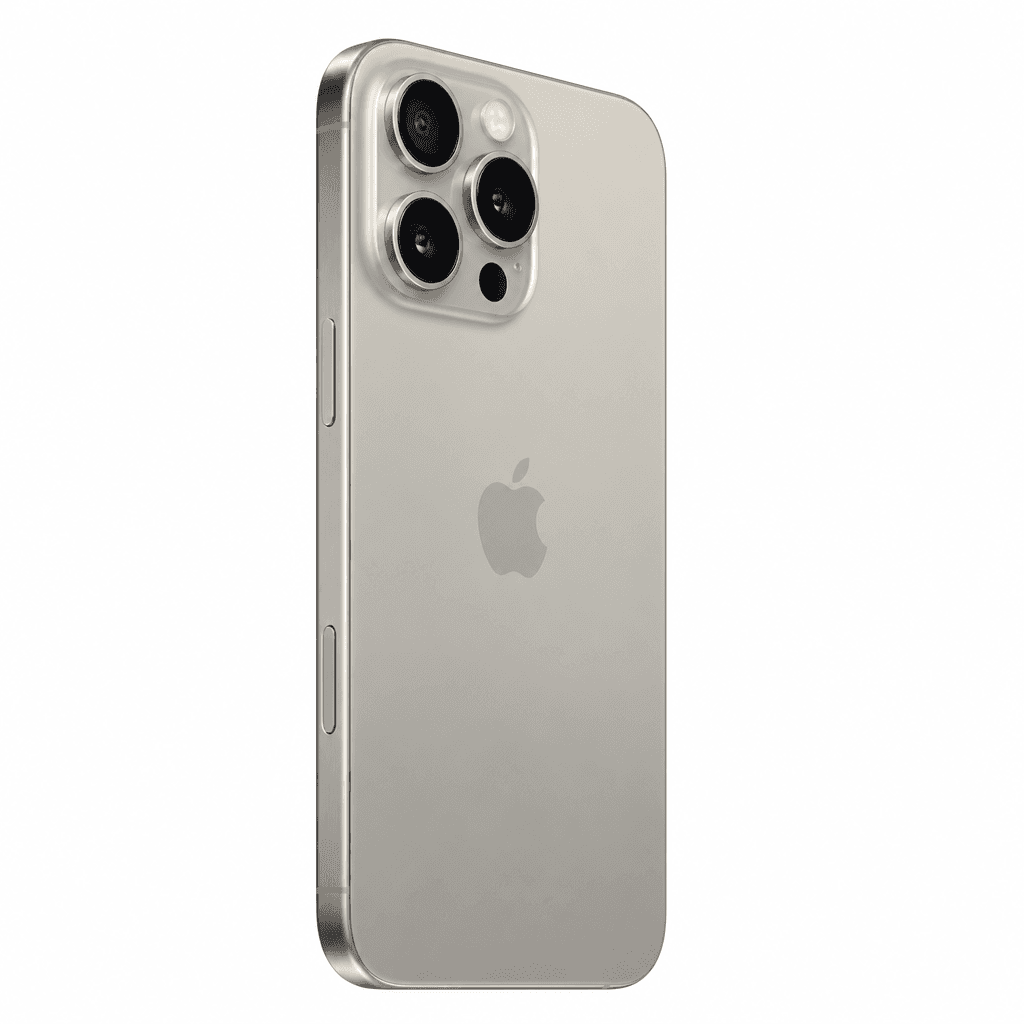
**iPhone 16 Pro** — ProRAW, Photographic Styles, optical tele and pro video in one device. Amazon affiliate link* — check storage size and price in shop.
Vergleich
Apple
Apple iPhone 16 Pro
Bild
Empfehlung
Top Pick
Sensor
48 MP · ProRAW · Photographic Styles
ISO-Bereich
4K/60 · ProRes · Log (model-dependent)
Autofokus
Optical 5× (Pro Max) / 3×–5×
Detail
256 GB+ if ProRAW/ProRes active
Stärken
+ProRAW and ProRes in the Camera app
+Strong video and stable colours
+Optical telephoto zoom — not pure software crop
Schwächen
−More expensive than standard iPhone
−Pro formats eat storage — plan for iCloud
Geeignet für
Anyone who wants iPhone photo and video beyond HEIF snapshots.
Still unsure if you need a new iPhone? First apply settings from sections 00–06 on your existing device. Upgrade pays off when Night Mode, tele or RAW are missing — not because of a new filter.
08
FAQ
Frequently asked questions
Should I always enable ProRAW?+
No. Only for important subjects you want to edit. Everyday: HEIF. ProRAW costs 60–80 MB per image and needs Lightroom or similar.
HEIF or JPEG?+
HEIF (High Efficiency) for smaller files and more dynamic range. JPEG (Most Compatible) when you send images to Windows PCs without codec plugin.
Which video setting for Instagram?+
4K/30 or 1080p/30 — HDR on. ProRes is unnecessary for Reels and eats storage.
How much storage do I need with ProRAW?+
At least 256 GB recommended. 128 GB only works with disciplined deleting and iCloud optimisation.
Photographic Styles or filter later?+
Styles for consistent look straight from camera. For maximum control: Standard style + editing. Extreme styles are hard to undo in ProRAW.
Is iPhone 16 Pro worth it just for the camera?+
If you already have iPhone 14 Pro or newer: optimise settings first. The jump pays off when tele, ProRAW or pro video are missing.
Affiliate links marked with * — iPhone recommendation based on practice, not commission. You don't need to replace your current iPhone. Amazon product links use partner ID martinkleinhe-20.
◆ Newsletter
Stay in the loop.
Camera and photography news, honest gear tests and new articles — in your inbox. Infrequent but relevant. No spam, unsubscribe anytime.