
Lightroom vs. Lightroom Classic: The Ultimate 2026 Comparison

Two programs, one name: Classic with a local catalog or Lightroom (Cloud) with sync across all devices? Features, performance, real costs and workflows — with a clear decision guide.

Lightroom vs. Lightroom Classic — comparison 2026
Martin Kleinheinz
Author
Martin Kleinheinz
Photographer · Hannover
Updated
May 25, 2026

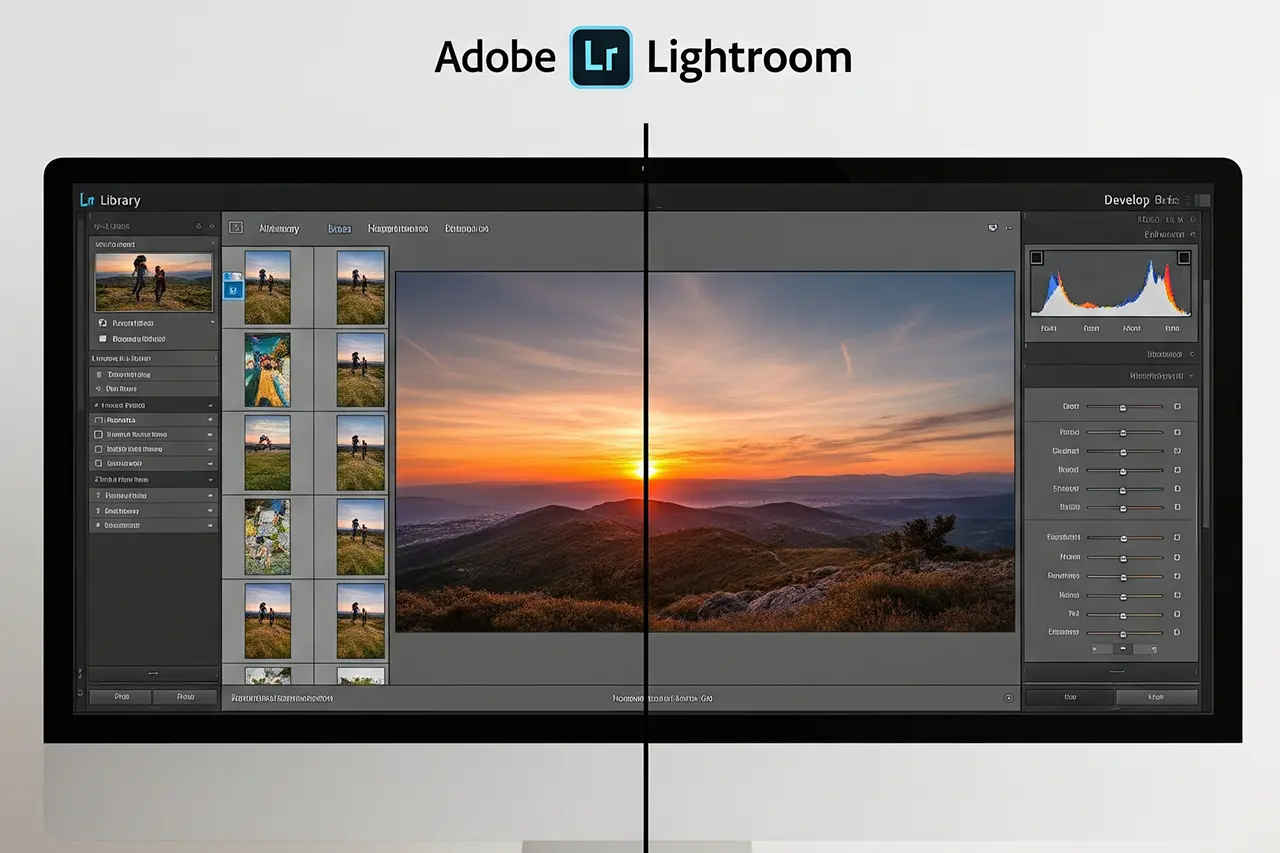
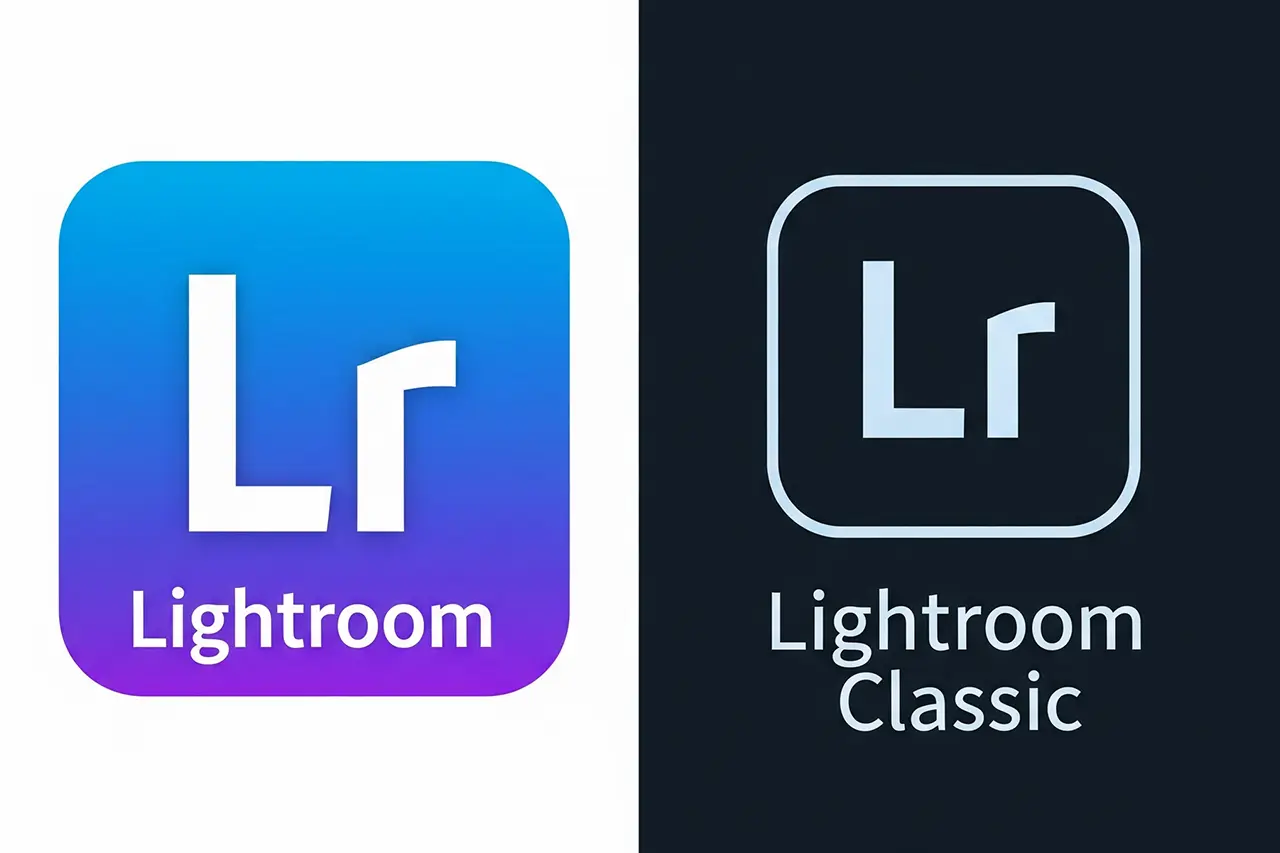
"Should I use Lightroom or Lightroom Classic?" — I still hear this question every day in 2026. No surprise: Adobe sells two programs under similar names that differ fundamentally. Lightroom Classic is the desktop solution with a local catalog. Lightroom (formerly "CC", often just "Lightroom" in the app) is the cloud variant with sync across all devices.

Both use the same RAW engine — image quality is identical. The difference lies in workflow, organization, speed with large quantities and dependency on the cloud. If you miss that, you often pick the wrong version and regret it months later.

After more than 15 years with both variants and training many photographers, my short answer is: serious photography with lots of images → Classic. Few photos, mobile-first, maximum convenience → Cloud may be enough. The Photography Plan includes both — you don't have to commit upfront.

This comparison covers features, performance, real costs (including hidden cloud storage), migration and a clear decision guide. If you need the basics first, start with What is Lightroom?.


00
Quick pick

The 30-second decision

Lightroom Classic
More than 2,000 photos, RAW editing, events/weddings/business, offline work, plugins, HDR, tethering → Classic.
Lightroom (Cloud)
Less than 1,000 photos, mobile-first, easy onboarding, automatic cloud backups, fast sharing → Cloud can be enough.
Unsure?
Install Classic. Switching to Cloud later is easier than the reverse. Both are included in the Photography Plan.
01
Basics

Two programs, two philosophies

Lightroom Classic · Local control

Classic is the evolution of the original Lightroom (since 2007). Your RAW files stay on your hard drive — the catalog only stores metadata and editing instructions, not the images themselves.

Target group: pros, enthusiasts with large archives, anyone who wants local data sovereignty. Edits are non-destructive and can be undone at any time.

Lightroom (Cloud) · One library everywhere

Lightroom (Cloud) was conceived as a fresh start in 2017: originals in Adobe Creative Cloud, sync across desktop, iPad, iPhone and Android. Adobe handles storage and file management — you upload and access from anywhere.

Control vs. convenience

Classic: "You decide where your photos live and how they're organized." Cloud: "We take care of the tech — you take photos." Both are legitimate — the right choice depends on your priorities.

02
Features

What can each version do?

FeatureClassicCloudWinner
RAW engineFullFullTie
AI masks & Generative AIFull (2025/26)PartialClassic
Local adjustmentsAll toolsBasic + AIClassic
Catalog / DAMComprehensiveSimplified + AI searchClassic (pros)
Batch editingVery efficientPossible, slowerClassic
PluginsYesNoClassic
HDR / panoramaYesNoClassic
Book / print moduleYesNoClassic
Mobile appsVia sync selectionNative, fully integratedCloud
AI image searchImprovedStrongCloud

Feature comparison: Lightroom Classic vs. Lightroom (Cloud) — 2026

Editing: Cloud covers about 80% of global adjustments. For precise local retouching, preset stacks and the full Generative AI pipeline (Remove, Expand, advanced AI masks), Classic is clearly ahead in 2026 — contrary to the old cliché that "everything new goes to CC first".

Organization: Classic offers smart collections, keyword hierarchies, virtual copies. Cloud relies on AI tagging, people and object detection — less manual, less precise on large archives.

03
Performance

Speed in everyday work

CriterionClassicCloudRecommendation
Startup time3–5 s2–3 sCloud slightly faster
Import 1,000 RAW2–5 min (local)Hours (upload)Classic
EditingSmooth (local)Good up to ~10k imagesClassic at scale
ExportVery fastDownload + exportClassic
RAMHigh with large catalogModerateCloud leaner
OfflineWeeks possibleLimitedClassic

Performance comparison — depends on hardware and internet

The biggest difference: import and export. Classic works locally. Cloud has to upload every original and often re-download on export. For event and wedding photographers with tight deadlines, Cloud is often practically unusable as the main workflow because of upload times.

04
Workflows

Which version for which photographer?

Use caseBest choiceWhy
Wedding / eventClassicVolume, batch, offline, fast delivery
Portrait studioClassicLocal adjustments, tethering, plugins
Travel / mobileCloudSync, editing on the go
Hobby (< 2k photos)CloudSimple, automatic backup
Social mediaCloudMobile apps, quick sharing
Sport / actionClassicInstantly available after import

Workflow recommendations by use case

Hybrid: the best of both worlds

Many pros use Classic as their main tool and sync selected collections to Cloud for client previews or mobile editing. The Photography Plan includes both — a typical workflow: edit the shoot in Classic, sync 30–50 highlights to Cloud, the client sees previews on their smartphone.

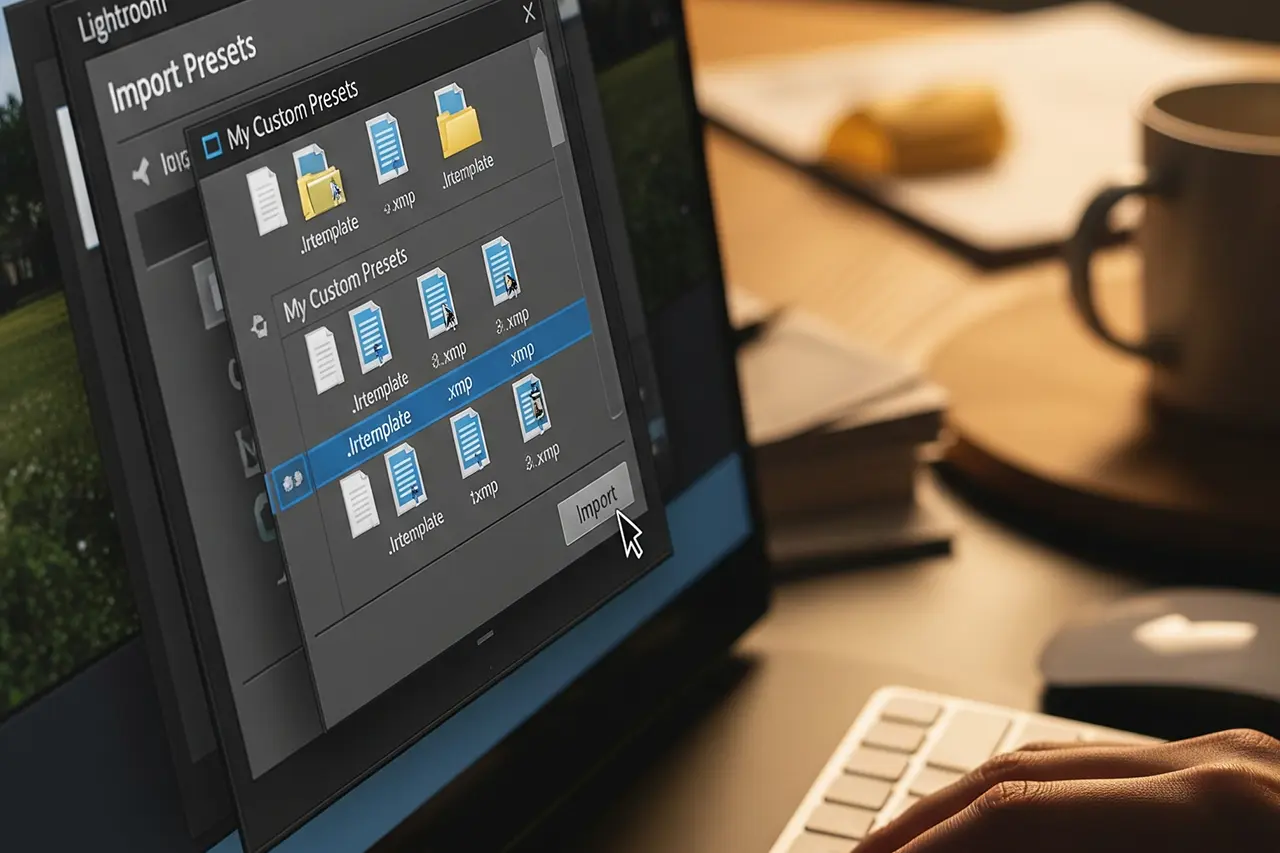
Important: presets and the full preset library do not sync automatically between Classic and Cloud — only selected images and limited metadata. Details in the import Lightroom presets guide.

05
Costs

What it really costs

ItemClassicCloudNote
Photography Planapprox. €12.99/mo.approx. €12.99/mo.Both included
Cloud storage20 GB (often unused)20 GB (usually too little)RAW fills quickly
Extra storageNot needed+approx. €10/mo. for 1 TBCloud gets pricey
HardwareSSD/RAM recommendedLess localClassic: one-time investment
InternetMinimalPermanent needMind upload costs

Cost comparison (2026 prices — verify on Adobe's site)

Cloud storage reality: a modern RAW file is 25–45 MB. 20 GB ≈ 500–800 RAWs — for many that lasts 1–2 months. If you use Cloud as your main archive, you quickly land at the 1 TB upgrade and pay about twice as much as the base plan.

Long term: with large archives Classic is often cheaper because your photos live on your own hardware. Cloud scales linearly with storage prices — and Adobe can change those at any time.

06
Migration

Switching between versions

DirectionDifficultyData lossTime
Classic → CloudMediumLocal adjustments, collectionsHours–days upload
Cloud → ClassicHardAI tags, album structureWeeks of reorganization
Use in parallelEasyNoneImmediate

Migration: effort and typical data loss

Classic → Cloud: the upload marathon

Transferable: RAWs, stars, color labels, basic Develop settings. Lost: complex local masks, smart collections, keyword hierarchies, virtual copies, plugin data. 10,000 RAWs (~350 GB) at 50 Mbit upload: 20+ hours — interruptions can cause problems.

Cloud → Classic: the hard way back

Adobe doesn't offer a "download everything" button. Export in batches or use third-party tools. CC albums don't become Classic collections. Tip: make a full Classic backup before switching to Cloud.

1
Test migration with 1,000 photos first.
2
Full backup of catalog and files.
3
Migrate in stages, not all at once.
4
Test running in parallel before you switch fully.
07
Decision

Decision guide 2026

Definitely Classic if …

  • You have more than 5,000 photos or shoot > 2,000 new ones per year.
  • You work professionally or plan to.
  • You edit RAW and want precise control.
  • You need HDR, panorama, tethering or plugins.
  • You work offline or with unstable internet.
  • You want local data sovereignty.

Cloud can be enough if …

  • You have fewer than 2,000 photos and grow slowly.
  • You are a hobbyist without pro ambitions.
  • You value simplicity over feature depth.
  • You work mobile a lot and need sync.
  • You have fast, stable internet.

Future outlook

Adobe has committed to Classic long-term — it's too important for pros. The marketing focus is on Cloud, but the Generative AI pipeline lands first in Classic in 2025/26. If you want to stay independent long term, keep an eye on Lightroom alternatives — Capture One, Luminar Neo & Co.

My recommendation for beginners: start with Classic. The learning curve is steeper, but you learn "proper" photo management. Switching to Cloud is easier than the reverse. Use the image editing for beginners guide alongside as you get started.

Editor's Choice
Adobe Photography Plan (Lightroom Classic + Photoshop)
Bewertung
4.7
/ 5,0
★★★★
Basierend auf 0 verifizierten Bewertungen
Adobe

Adobe Photography Plan (Lightroom Classic + Photoshop)

Both Lightroom versions in one subscription

The **Creative Cloud Photography Plan** includes **Lightroom Classic**, **Lightroom (Cloud)**, Photoshop and 20 GB of cloud storage. You don't have to commit upfront — you can test both versions in parallel.

Was überzeugt
  • +Classic and Cloud at no extra cost
  • +Photoshop included for retouching
  • +Hybrid workflow possible
  • +7-day trial for a direct comparison
Was Du wissen solltest
  • No one-time purchase option
  • 20 GB cloud is often too little for pure CC use
  • Switching between versions takes effort
Editor's Statement

When in doubt: install Classic and use Cloud for mobile

Verfügbar bei
08
Verdict

Common mistakes and the bottom line

Underestimating cloud storage
20 GB sounds like a lot — until the first wedding with 2,000 RAWs. Do the math first.
Overestimating upload speed
50 Mbit download ≠ 50 Mbit upload. Speed-test with large files.
Planning only for today
Collections grow fast. In 3 years you might want Classic features.

Bottom line in one sentence

Lightroom Classic is the 2026 standard for serious and professional photography. Lightroom (Cloud) is the better choice for mobile-first, fewer images and maximum convenience — as long as storage and internet hold up. When in doubt: Classic — the Photography Plan includes both for testing.

The best version is the one you actually use. Install both, test for a week with real images — then the decision becomes obvious.

09
FAQ

Frequent questions about the comparison

Are Lightroom and Lightroom Classic the same subscription?
Yes. The Creative Cloud Photography Plan (approx. €12.99/month, 2026) includes both Lightroom variants plus Photoshop and 20 GB of cloud storage. You don't pay extra for Classic.
Can I switch from Classic to Cloud and back?
Classic → Cloud is technically possible but involves upload effort and data loss for complex settings. Cloud → Classic is significantly harder — no bulk download, reorganization required. Running both in parallel is the safest strategy.
Which version do beginners need?
If you're ambitious or planning to grow: Classic. If you only occasionally edit phone shots and want sync: Cloud. Many people start with Classic because the way back from Cloud is harder.
Do edits sync between Classic and Cloud?
Only selected images that you actively sync — not the entire catalog. Develop settings transfer partially; complex local masks and collection structures often don't. Presets don't sync automatically — see importing presets.
Is Lightroom Classic being discontinued?
Adobe has committed to Classic long term — it's too central to pro workflows. Updates come less often than for Cloud, but the full Generative AI pipeline arrived in Classic in 2025/26. Discontinuation in the next few years is unlikely; still, keep long-term alternatives in mind.
This article contains affiliate links to Adobe. If you buy through these links, I earn a small commission — at no extra cost to you. Thanks for your support!
Newsletter

Stay in the loop.

Camera and photography news, honest gear tests and new articles — in your inbox. Infrequent but relevant. No spam, unsubscribe anytime.

Keep reading

From the journal.

Fotograf, Martin Fernando Mera Kleinheinz · Franz-Bork-Straße 21, 30163 Hannover · 0179 4085397