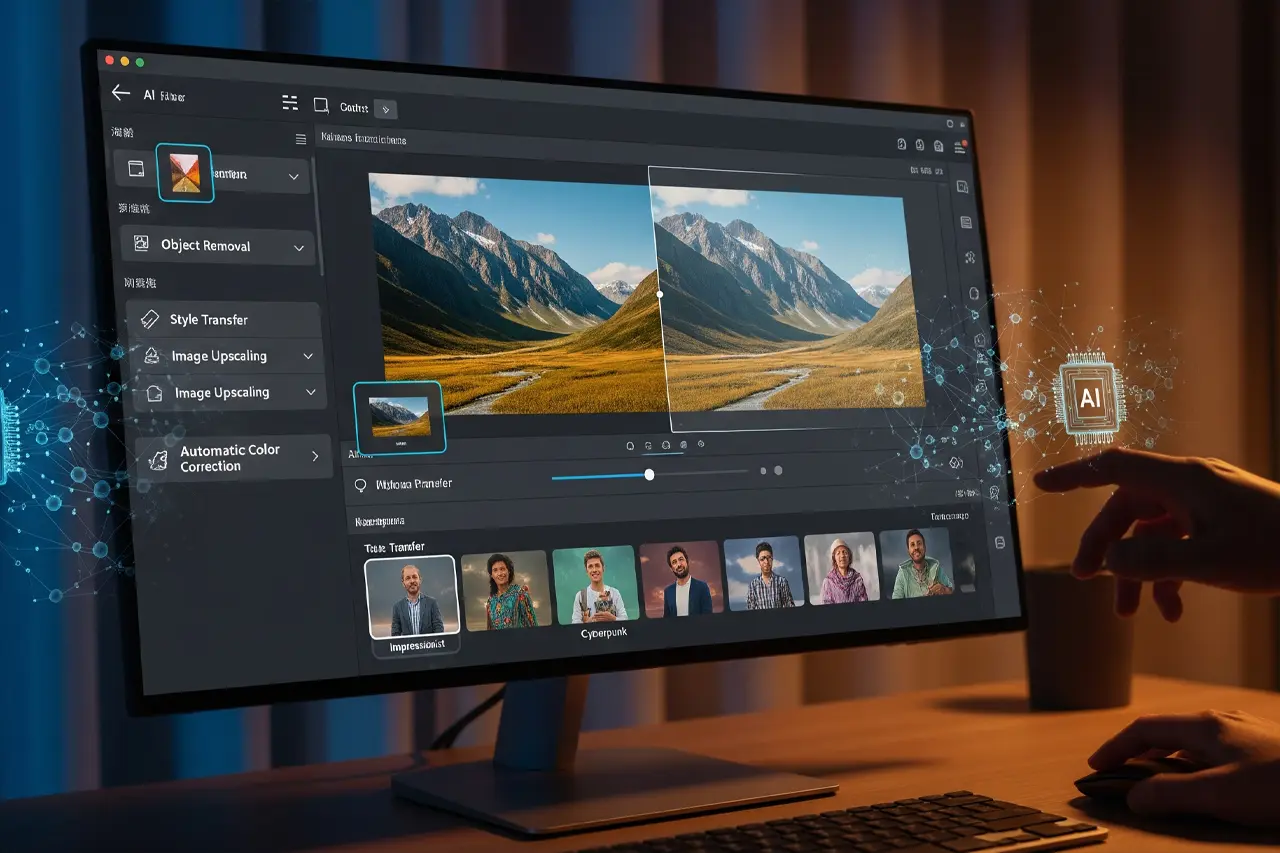

AI Photo Editing 2026: Tools, Workflows and ROI

Concrete instead of hype: which AI features you can use every day, which tools pay off and what wedding, portrait and real-estate workflows look like in 2026 – with an honest ROI calculation.

AI photo editing 2026 – tools and workflows for photographers
Martin Kleinheinz
Author
Martin Kleinheinz
Photographer · Hannover
Updated
May 26, 2026

Two years ago I would have laughed if someone had told me AI would revolutionize my photo editing. Today I save half the editing time on many shoots – without giving up my creative voice.

AI in photo editing doesn't mean the software shoots for you. It means automating the dumb steps – masks, denoise, batch corrections, removing small distractions – so you have energy for what really matters.

This guide is about practice: which AI features really work in 2026, which tools pay off and how to deliver weddings, portraits or real estate faster. For ethics, the EU AI Act and Content Credentials: AI for photographers. Fundamentals: photo editing for beginners.

00
Short

The Short Version

Beginner
Lightroom (Photography Plan) for organization and AI masks + Luminar Neo for sky and portrait – details in the guide best photo editing software for beginners.
Pro / volume
Lightroom Classic 15.3 (Assisted Culling, background AI) + Photoshop Generative Fill + Topaz Photo AI for print and ISO rescue.
Not recommended
Free AI apps as a main workflow – too slow, too unreliable for client work.
01
Applications

Where AI Really Helps

Automatic image optimization

Lightroom's Auto button now uses Sensei AI – not simple histogram algorithms anymore. On many images it delivers a usable starting point in seconds. You learn which sliders are typically needed in the process – your eye is trained, not replaced.

Smart masks

Subject, sky, background, skin, hair – one click instead of 20 minutes of brushing. In 95 % of cases that's enough; for complex hair you touch up a little. Even so, 80 % time savings are common.

Removal & generative fill

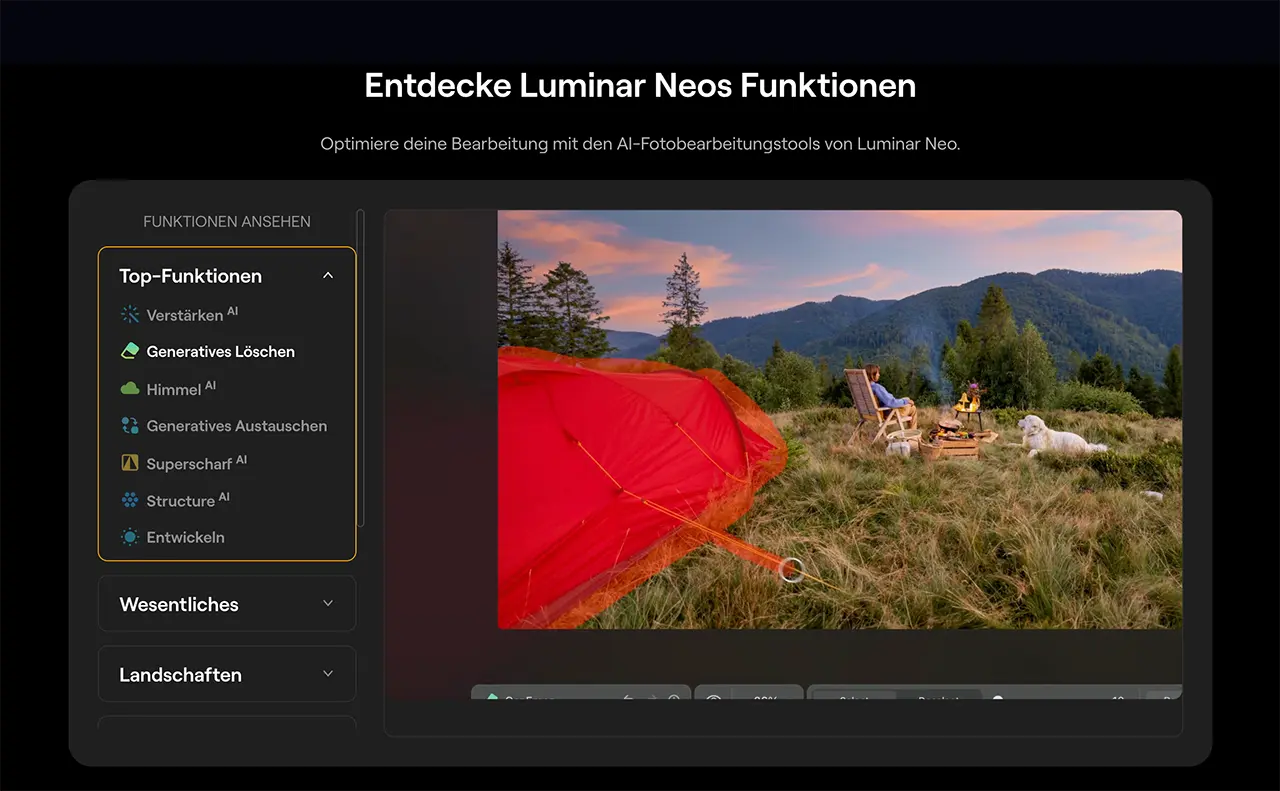
Generative Remove in Lightroom (Firefly) removes distractions on complex backgrounds with multiple variants to choose from. Generative Fill in Photoshop 27.6 (Firefly Image 5, optionally Gemini 3.1) adds or replaces content via text prompt – good enough for 90 % of social and client work, but always check for critical print jobs.

02
Software

The Best AI Tools 2026

ToolFocusTypical time savingsIdeal for
Adobe LightroomMasks, denoise, batch, culling40–60 %Anyone with high volume
Luminar NeoSky AI, Portrait AI, GenErase50–70 % single imageLandscape, real estate, portrait
Topaz Photo AIDenoise, sharpen, upscaleUp to 80 % technicallyPrint, sport, archive
DxO PureRAW 5RAW pre-processing~50 %ISO maximizers
PhotoshopGenerative Fill, retouchUp to 90 % on compositingAdvertising, product

AI tools for photo editing – practical comparison May 2026

Adobe: Lightroom 15.3 + Photoshop 27.6

  • Assisted Culling and natural-language search (Desktop 2026)
  • AI tasks (Denoise, Sync, Presets) run in the background – no more catalog freeze
  • Generative Remove inside the Remove tool, Detect Objects for precise selection
  • Firefly Image 5 + Gemini 3.1 in Photoshop for Generative Fill

Luminar Neo: the AI specialist

Sky AI, Portrait AI, Relight AI and GenErase often deliver more spectacular one-click results than pure Lightroom – especially on dramatic skies and natural portrait retouching. Use it as a plugin inside Classic, not as a catalog replacement.

Topaz Photo AI: technical perfection

Autopilot analyzes images and applies Denoise, Sharpen and Upscale – unbeatable for large prints from 24 MP files or old family photos. One-time purchase, runs locally on your PC for photo editing.

Recommendation

Adobe + Luminar – the everyday combo

This is how most pros I know work: organization in Lightroom, wow effects in Luminar.

Vergleich
Adobe
Adobe Photography Plan (Lightroom + Photoshop)
Skylum
Luminar Neo
Bild
Adobe Photography Plan (Lightroom + Photoshop)
Luminar Neo
EmpfehlungEditor's ChoiceBest Value
SensorMasks · Denoise · Generative Remove · Generative FillSky AI · Portrait AI · GenErase · Relight AI
ISO-BereichImport → AI batch → Photoshop polishStandalone · LR/PS plugin
AutofokusPhotography Plan · trial availableLifetime or subscription
DetailAssisted Culling · NL search · background AIOften 50–70 % on single-image effects
Stärken
  • +Best organization for large shoots
  • +AI no longer blocks the catalog (Classic 15.3)
  • +Firefly commercially safe
  • +Seamless roundtrip to Photoshop
  • +Spectacular results with just a few clicks
  • +Lifetime license possible
  • +Strong for real-estate skies and portraits
  • +Great companion to Lightroom, not a DAM replacement
Schwächen
  • Subscription only
  • Luminar-like wow effects often need a plugin or PS
  • Learning curve for Classic
  • No full catalog
  • Less deep RAW control than Capture One
  • Weaker batch workflow than pure LR
Geeignet fürWeddings, events, business – anywhere you edit many images consistently.Creative single images, real estate, landscape – combined with Lightroom for organization.
Wo kaufen
Editor's Choice
Adobe Photography Plan (Lightroom + Photoshop)
Bewertung
4.7
/ 5,0
★★★★
Basierend auf 0 verifizierten Bewertungen
Adobe

Adobe Photography Plan (Lightroom + Photoshop)

AI masks, Denoise and Generative Fill every day

Lightroom Classic 15.3 with background AI, Assisted Culling and Generative Remove. Photoshop 27.6 with Firefly Image 5 and Gemini 3.1 – the stack for batch editing and complex retouching.

Was überzeugt
  • +Best organization for large shoots
  • +AI no longer blocks the catalog (Classic 15.3)
  • +Firefly commercially safe
  • +Seamless roundtrip to Photoshop
Was Du wissen solltest
  • Subscription only
  • Luminar-like wow effects often need a plugin or PS
  • Learning curve for Classic
Editor's Statement

The base for any AI workflow with catalog and RAW

Verfügbar bei
Best Value
Luminar Neo
Bewertung
4.5
/ 5,0
★★★★
Basierend auf 0 verifizierten Bewertungen
Skylum

Luminar Neo

Sky AI, Portrait AI, GenErase – without the Adobe lock-in

One-click AI for sky, portrait, relight and generative removal. As a standalone or as a plugin in Lightroom Classic – ideal for landscape, real estate and fast client deliveries.

Was überzeugt
  • +Spectacular results with just a few clicks
  • +Lifetime license possible
  • +Strong for real-estate skies and portraits
  • +Great companion to Lightroom, not a DAM replacement
Was Du wissen solltest
  • No full catalog
  • Less deep RAW control than Capture One
  • Weaker batch workflow than pure LR
Editor's Statement

My go-to for sky and portrait AI

Verfügbar bei
03
Workflows

AI by Photography Genre

GenreAI usageToolsSavings (typical)
WeddingCulling, batch correction, skin, skyLR + Luminar5–8 h → ~2 h per event
PortraitPortrait AI, eyes, skinLuminar Neo15 min → ~2 min per image
Real estateSky AI, exposure, distractionsLuminar + LR~60 % editing time
ProductCut-outs, backgroundPhotoshop Generative FillMinutes → seconds
SportDenoise, batch sharpeningTopaz Photo AI1000+ images automatable

AI workflows by genre

Wedding photography

Typical 2026 stack: Import → Assisted Culling or Aftershoot → Lightroom batch with AI masks and presets → Luminar for outdoor skies and group portraits → export. 20 weddings × 6 saved hours = 120 hours/year – time for more bookings or for recovery.

Portrait photography

Portrait AI detects skin tone and age – with different strengths for children vs. adults. Before/after comparisons often show clients why professional retouching is worth its value – without the plastic look.

Real-estate photography

A grey sky becomes a selling point: Sky AI plus exposure AI turn rainy shoots into market-ready listings. Distractions (rubbish, cars) get removed with Generative Remove – clarify legal aspects and transparency for heavily manipulated listings in the contract.

04
Setup

What You Actually Need

Entry-level setup

Adobe Photography Plan (Lightroom + Photoshop, about €12.99/month as of 2026) plus Luminar Neo (lifetime or annual license). Under ~€35/month total – less than two hours of minimum-wage editing.

Pro setup

Photography Plan + Luminar + Topaz Photo AI (one-time purchase). Workflow: LR import/culling → LR/PS correction → Luminar effects → Topaz for final print files. At 20 hours saved per month and a €50 hourly rate: about €950 in value vs. about €70 in tool costs.

Specialty tools

  • Aftershoot – AI culling for very large events
  • Evoto – beauty retouching in batch
  • DxO ViewPoint – architecture perspective

Every additional tool should pay for itself in time savings within three months. More alternatives: Lightroom alternative 2026.

05
ROI

Why AI Pays Off

"AI is too expensive" is something I hear often. The math says otherwise: as a pro in 2026 you can hardly afford to work without AI – if you have volume.

Time savings in numbers

Example wedding photographer: 20 events × 6 h saved = 120 h/year. At an internal value of €30/h that's €3,600. Tool costs are often under €1,000/year → ROI well above 200 %.

Quality and scaling

AI corrections are consistent – no bad day after 10 hours of manual work. Many photographers report more positive reviews and the ability to take on more shoots without burning out.

Trends for 2026/27 (background AI, EU labeling, C2PA): in detail in the article AI for photographers.

06
FAQ

Frequent Questions

Is AI editing cheating?
No. Denoise, masks and exposure AI are industry standard today – like autofocus in the camera. The problematic part is generative invention of scenes without disclosure – relevant from August 2026 under the EU AI Act.
Are free AI tools enough?
For play, yes. For client work, rarely. Missing RAW workflows, no batch processing, unstable results. The time savings from Lightroom and Luminar usually beat their cost within weeks.
Lightroom or just Luminar?
Lightroom for catalog, RAW and batch. Luminar for creative AI effects. Luminar alone works for small volumes but doesn't scale to event work.
Do I also need Topaz?
Only if you do large prints, extreme ISO or archive restoration. For normal wedding and business work, Adobe + Luminar is enough.
How do I get started without being overwhelmed?
Week 1: Auto + one AI mask per day. Week 2: test Generative Remove on 5 images. Week 3: Luminar Sky AI on 10 landscapes. Only then move to batch and presets.
This article contains affiliate links to Adobe and Skylum (Luminar Neo). If you buy through these links I receive a small commission – at no extra cost to you. Thank you for your support!
Newsletter

Stay in the loop.

Camera and photography news, honest gear tests and new articles — in your inbox. Infrequent but relevant. No spam, unsubscribe anytime.

Keep reading

From the journal.

Fotograf, Martin Fernando Mera Kleinheinz · Franz-Bork-Straße 21, 30163 Hannover · 0179 4085397